How to Send Large Files Securely When They're Too Big to Email
Email caps out around 25 MB, so big files won't attach. Here's how to send large files securely and fast — past email limits, with one safe link.
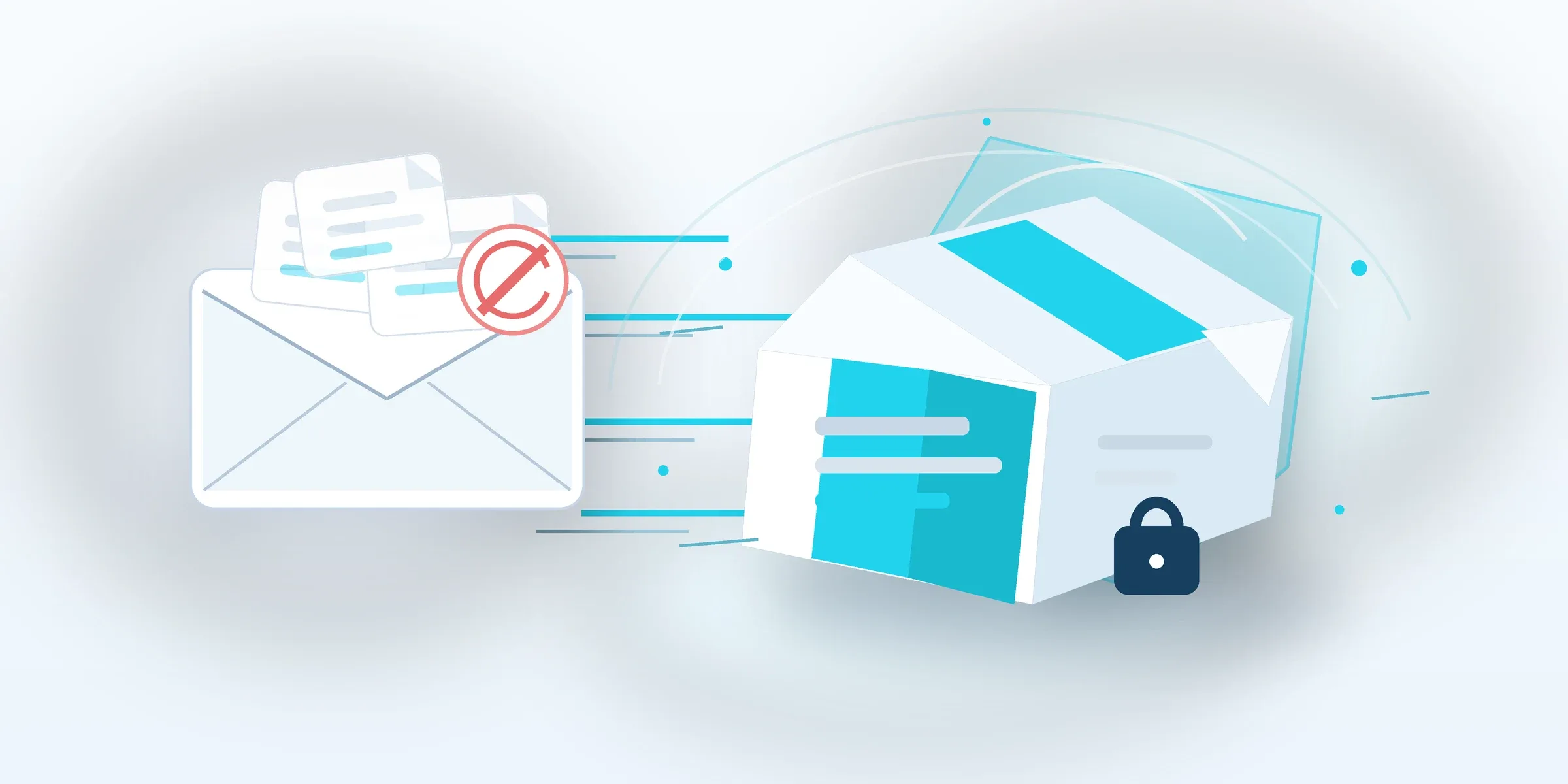
You finish exporting a video, packaging a design handoff, or compiling a folder of contracts, and you go to email it — only to watch the attachment get rejected. The file is simply too big. Gmail caps attachments at around 25 MB. Outlook is even tighter, near 20 MB. A single phone video or a high-resolution PDF can blow past that in seconds.
So people improvise. They split one file into several zip archives. They wrap it in a password-protected archive and text the password separately. Some still burn things to a USB drive and hand it over. These workarounds technically move the file, but they’re slow, fragile, and surprisingly easy to get wrong — and “email the password in a second message” is not real security.
There’s a cleaner way. Below is how to send a large file from A to B securely, without ever fighting an email limit again.
First, understand why email can’t do this
Email was never designed to move large files. The protocol behind it carries attachments inline with the message, and every provider sets a hard ceiling to keep inboxes manageable. When your file is bigger than that ceiling, it doesn’t matter how fast your connection is — the attachment just won’t go.
That’s the key mental shift: stop trying to make email carry the file, and instead send a link to the file. The file lives somewhere built to hold it, and your recipient downloads it directly. This is faster, has no practical size limit, and keeps your inbox out of the equation entirely.
There are two main ways to do this, and they’re built for different jobs.
Option 1: Cloud storage (Dropbox, Google Drive)
Cloud drives are built primarily for storage and sync. The file lives in your account, stays there long-term, and you can share a link to it. This is a great fit when the file needs a permanent home — something a team edits together, a document you’ll reference again next month, or an archive you want to keep.
The trade-offs show up when your main goal is simply to send something once. Download speeds from a shared drive link can be inconsistent, especially over long distances. You’re working within your account’s storage quota, so large files eat into space you may need for other things. And sharing controls can be fiddly: it’s easy to leave a link more open than you intended, or to wrestle with permissions just to let one person download one file.
Option 2: File-transfer services
File-transfer tools are built for one job: getting a file from sender to recipient. You upload the file, you get a link, your recipient clicks it and downloads. There’s nothing to keep, nothing to organize, no shared folder to manage. The whole experience is shaped around a clean, one-time handoff.
Because that’s all they do, transfer services tend to be faster and simpler for sending, and they usually don’t ask your recipient to have an account or install anything. When the file doesn’t need to live anywhere permanently — you just need it there — this is the right tool.
How they compare
| Cloud storage | File-transfer service | |
|---|---|---|
| Built for | Storing & syncing files | Sending files once |
| Recipient needs an account? | Often yes | Usually no |
| Best when | The file needs a long-term home or shared editing | You just need to deliver it, fast |
| Size limits | Bound by your storage quota | Often very large or uncapped |
| Send speed | Can be inconsistent over distance | Optimized for fast delivery |
Neither is “better” in the abstract. If you need the file to stick around and be edited collaboratively, cloud storage wins. If you need to deliver it cleanly and move on, a transfer service wins.
What “securely” actually means here
Sending a large file securely isn’t about zipping it with a password and emailing that password around. Real security comes from two things working together: the transfer itself is encrypted, so the file can’t be read in transit, and access is controlled by the link, so only the person you send it to can download it. No attachment sitting in inboxes, no password floating in a separate message — just an encrypted file behind a link you control.
Where WarpSend fits
WarpSend is a file-transfer service built for exactly this: sending large files fast and securely, with no per-file size cap. It runs on a UDP edge engine across Cloudflare’s global network, which is what makes it quick even when sender and recipient are on opposite sides of the world.
It offers two modes. Send moves files peer-to-peer over UDP — direct and fast. Share lets you upload once and have recipients download from the Cloudflare edge node nearest them, with no account required on their end. Either way, transfers are encrypted and delivered through a link, so “secure” is the default, not an extra step.
There’s no size ceiling to plan around, and the free tier includes 1 TB of monthly traffic plus 200 GB of storage — enough to handle real files, not just demos.
The next time something is too big to email, you won’t need to split it, zip it, or apologize for it. Just send the link.