Client Portal for Large File Uploads: Buying Guide
Choose a client portal for large file uploads by checking submission privacy, uploader identity, recovery, receiving limits and the handoff to your team.
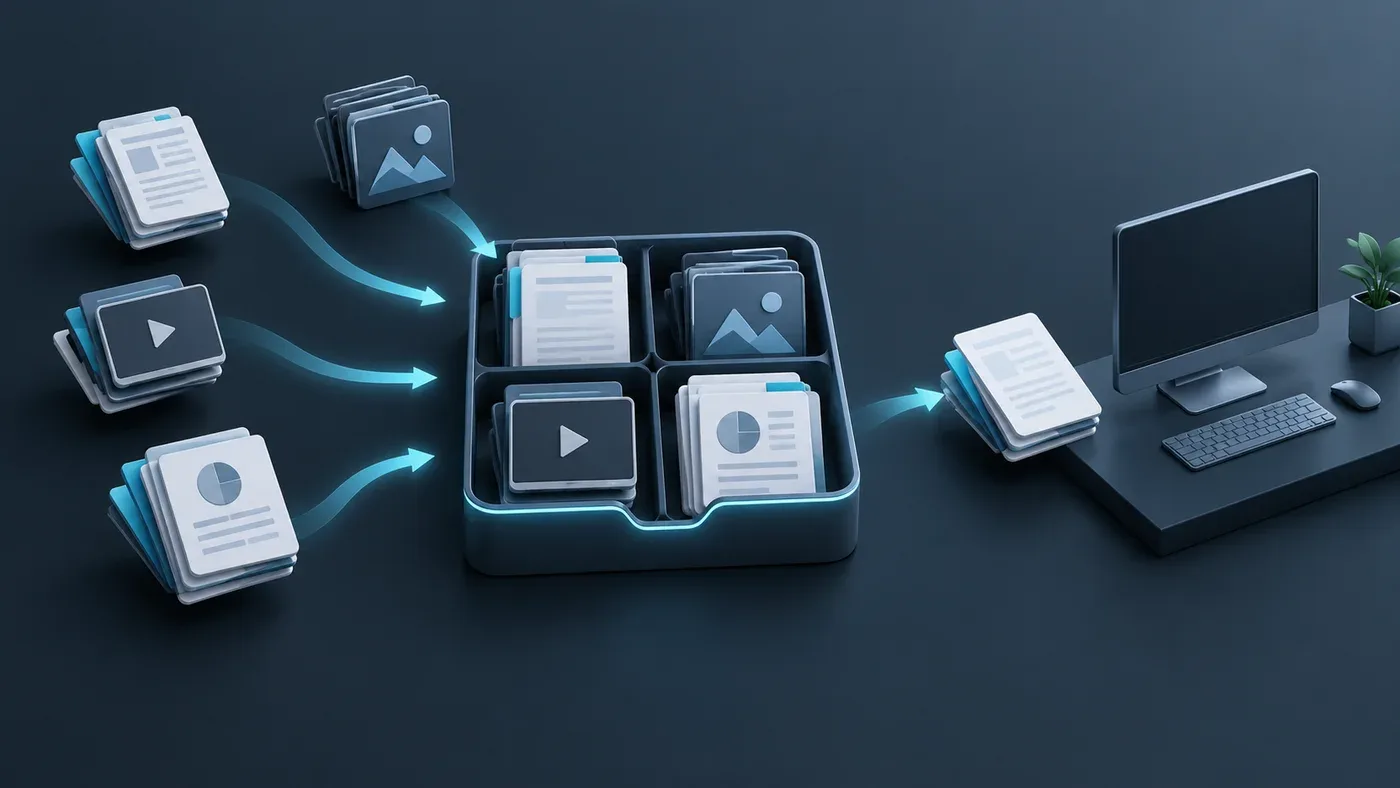
Choose a client portal for large file uploads by following one submission from the client’s browser to the team’s working destination. The useful questions are who can submit and see files, what happens after an interruption, and what staff must do before the package is ready.
A branded upload page can make the request recognizable, but it does not establish uploader identity, isolate clients or confirm that files reached a workstation. Evaluate those behaviors separately. This guide focuses on choosing the collection service; the client footage intake workflow covers the receiving team’s day-to-day records and editorial handoff.
Decide whether you need an inbox or a broader portal
A file request inbox collects submissions. A download link distributes files. A broader client portal may also provide recurring account access, project conversations, approvals or document management. Buy those additional capabilities when they serve a real task, rather than assuming they are necessary to receive a large folder.
Start with the tools the team already uses. Dropbox documents account-free file requests and a private destination folder by default. Review any existing folder sharing before relying on that default. An available collection feature may be enough without adding another client system.
Write down your receiving workload: largest individual file, typical package size, file count, folder depth, expected simultaneous contributors and retention needs. Check the selected plan and upload route, not a homepage’s general maximum. Limits for a web upload, file request, shared folder and email attachment can differ within one service.
Also define the final destination. If staff work from a NAS, receiving into cloud storage and saving onto that NAS are separate steps. A service may automate the second step, leave it to staff, or require another tool.
Separate access, identity and submission privacy
A link can authorize submission without proving who is using it. Microsoft’s OneDrive file-request guidance says an unsigned-in uploader’s entered name is not validated, and request contributors cannot view the destination folder’s contents. Those are distinct properties.
For occasional trusted contributors, a request reference and a confirmation through your established contact channel may fit the job. If named-person verification is required, make the identity mechanism a purchasing requirement. A logo, project name or typed email address is not a substitute.
Check the experience with two test contributors and harmless sample files. Does either contributor see the other’s filenames, submissions or download links? Can a client browse the receiving folder, overwrite an earlier upload or delete anything? Decide the required result before the trial. An upload-only inbox and an editable shared folder grant different kinds of access.
Give staff only the access they need, and establish who can create requests, retrieve submissions and stop collection. Closing an upload route, revoking access to existing files and deleting stored copies are different actions. Ask how the service handles each one.
Turn the buying criteria into observable tests
Use disposable data in an approved trial, with the actual browsers and receiving storage you expect to support. Record the product version or test date, plan, settings, file count and total bytes. The table below is an acceptance plan, not a claim that every portal provides these features.
| Requirement | Trial | Evidence to keep |
|---|---|---|
| Client can reach the intended request | Open the supplied link while signed out, or with the intended identity when required | Account, password and installation steps; clear project instructions |
| Contributors cannot access each other’s work | Submit different harmless files as two contributors | What each person can view, download or change |
| Interruption recovery is understandable | Interrupt one upload, reconnect, then separately test closing and reopening the tab | What resumes, what must be selected again, and whether duplicates appear |
| Original packages remain identifiable | Submit a small folder tree and repeat a filename in another submission | Preserved paths or documented renaming; distinct submission references |
| Capacity failures are actionable | Test an agreed limit in the trial environment | Clear rejection or partial-submission status and a recovery path |
| The receiving team can use the result | Retrieve the package, then save it to the intended working destination | Expected files present, application check and destination confirmation |
Do not treat a successful reconnect in the same tab as proof of recovery after a browser restart. Test the interruption that actually affects your clients. For setup and browser checks, use the browser-upload guide.
A small synthetic package is useful for checking permissions and names. It cannot establish how a large production workload performs. If time matters, separately measure a representative package from upload start to usable receipt, including any onward download, extraction and verification. Keep the sending files unchanged during that trial.
Ask what the security controls actually cover
Encryption protects a particular part of the path; it does not establish that an uploaded file is safe to open. Ask who can decrypt stored content, which metadata remains visible, and where any scanning or approval step occurs.
OWASP’s file-upload guidance recommends layered checks and warns against trusting a client-supplied content type alone. Use it to frame vendor questions about validation and isolation; a generic security badge does not answer them.
If the service cannot read encrypted content, ask how your required inspection will happen after authorized decryption. Keep incoming files in a controlled receiving location until the team’s applicable checks are complete. Do not assume a portal includes malware scanning, records retention or regulatory compliance simply because it supports passwords or encryption.
Trace the receipt and the cost beyond the upload
Agree on what each status means: received by the service, available for staff retrieval, saved to an endpoint, and accepted for project use. A client-facing success message may establish only the first milestone. A notification is useful only if the responsible person can identify the submission and take the next action.
Run a correction through the trial too. Submit a replacement with the same filename and confirm whether it becomes a new submission, gets renamed or changes an existing file. The team needs to distinguish a deliberate revision from an accidental duplicate. Keep the detailed request instructions and follow-up messages in the operating process.
Compare charges for the complete route: plan or seats, uploaded data, retained data, retrieval or delivery, and any staff work left between systems. Check whose storage allowance receives the files and what happens when it fills. Avoid comparing one vendor’s subscription with another’s transfer-only charge as if both include the same job.
Where WarpSend File Requests fit
File Requests lets external clients upload in a browser without a WarpSend account or app. Submissions enter a cloud inbox; the owner can retrieve them or choose optional delivery to an endpoint. An offline endpoint can receive queued submissions after reconnecting. Confirm that destination’s save result before treating the local copy as ready.
The owner chooses end-to-end encryption when creating the request, using WarpSignet. A request password alone does not enable it. Without that option, files use TLS and service-managed storage and access controls. Filenames, paths, sizes and submission/delivery metadata remain visible to the service. The security guide explains the boundaries.
WarpShare handles outbound download links, WarpDirect handles endpoint transfers, and WarpSync handles recurring folder synchronization. These roles are separate from a full client project-management portal. See the client delivery solution for how collection and delivery fit a small team’s work.
File Requests and share links use an upload-volume billing model, with retention beyond the included term billed separately and no download egress fees. Check the current pricing page for the applicable plan and retention choices.
Choose the service whose required behaviors you can demonstrate, then record the remaining manual handoffs and their owners. A clear result for the client and a usable, identifiable submission for staff are the purchasing outcome.
After choosing the service, follow the no-account upload link setup guide to create the receiving link and diagnose unexpected sign-in prompts.
For a consistent client-facing appearance, use the branded upload portal setup example to separate organization-wide identity settings from each project’s instructions.
For day-to-day handling after choosing a service, use the secure client file collection guide to separate access controls, incoming-file inspection and retention responsibilities.
Frequently asked questions
Do I need a full client portal just to collect large files?
A file request inbox may be sufficient when clients only need to submit files and your team manages the next steps elsewhere. Choose a broader portal when recurring client access, document review or other ongoing services are actual requirements.
Does an account-free upload identify the client?
Not by itself. A name typed into a form is different from an authenticated identity. Decide whether a project reference is enough or whether the submission needs an additional identity check through an approved channel.
What should a large-file portal trial include?
Use representative files and test client access, isolation between contributors, interrupted uploads, repeated filenames, capacity limits and staff retrieval. Record what each completion message proves and any manual steps needed.
Does a request password enable WarpSend end-to-end encryption?
No. A request password controls access. The owner separately chooses end-to-end encryption when creating a File Request, which requires WarpSignet. Check the request’s encryption mode before sending confidential material.