Solutions
Synology NAS file transfer software for work across sites.
Manage transfers and folder sync across supported Synology NAS devices from one portal. Check each job’s progress, or use a compatible AI agent through the WarpSend MCP Server.
Connect your NAS devicesCONNECT EVERY NAS
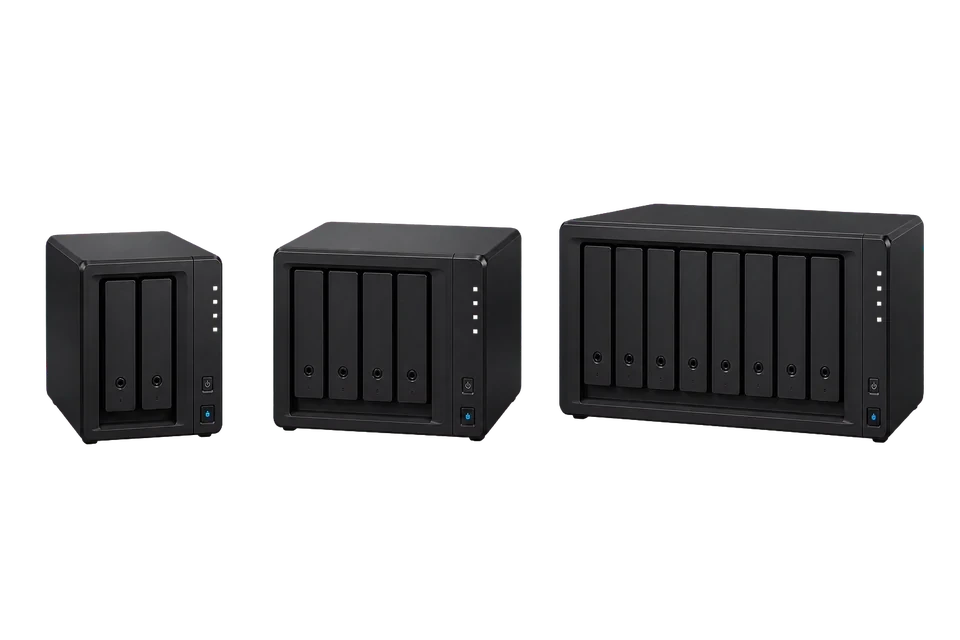
Bring every site into one system
CONTROL EVERY DATA FLOW
“Keep Taipei /projects synced to Tokyo.”
Manage it yourself or tell an AI agent
MOVE DATA ACROSS SITES
 Taipei Tokyo
 Keep large cross-site datasets moving
One system for the whole NAS estate: connect it, control it, move it fast.
Start with the result you need. Synology Snapshot Replication and Hyper Backup provide recovery points; Shared Folder Sync and Drive ShareSync cover NAS-to-NAS mirrors or shared working folders. WarpSend manages file-level transfers and one- or two-way sync across supported Synology NAS, desktop, and server endpoints in one portal. It does not replace snapshots or versioned backups. Pair each NAS, grant folder access, and test one transfer before scheduling recurring sync.
What slows this work down
Every new NAS creates more point-to-point jobs
Two devices need one relationship. Five devices can create a web of transfers, sync rules, schedules, and credentials that becomes difficult to reason about or hand over.
There is no shared view of what is moving
When every site has its own tool or script, IT cannot answer a simple question quickly: which dataset is moving, between which NAS devices, how far along is it, and did it finish intact?
The next administrator needs to understand the job
Record the source folder, destination, sync direction, and expected completion time so someone else can check the handoff. A shared view of jobs and history helps the team investigate a stopped transfer without reconstructing a private script.
Conventional WAN transfers leave bandwidth idle
Large cross-site datasets expose the round-trip penalties of older transfer workflows. WarpSend uses QUIC over UDP, parallel movement, verified progress, and automatic resume to keep high-latency routes productive and multi-terabyte jobs moving.
Connect the NAS devices involved in each job
Pair the devices with your WarpSend organization, choose the folders, and confirm a representative transfer completes before scheduling repeated work.
Install and pair each NAS
Install the supported Synology package, open WarpSend, and complete DSM administrator sign-in and WarpSend account pairing. Connect the NAS devices to the same organization.
Check the Synology package requirementsCheck the connected devices
Confirm that each endpoint is online and that the folders you intend to use are available. The portal shows active jobs, transfer progress, sync state, and history across the connected devices.
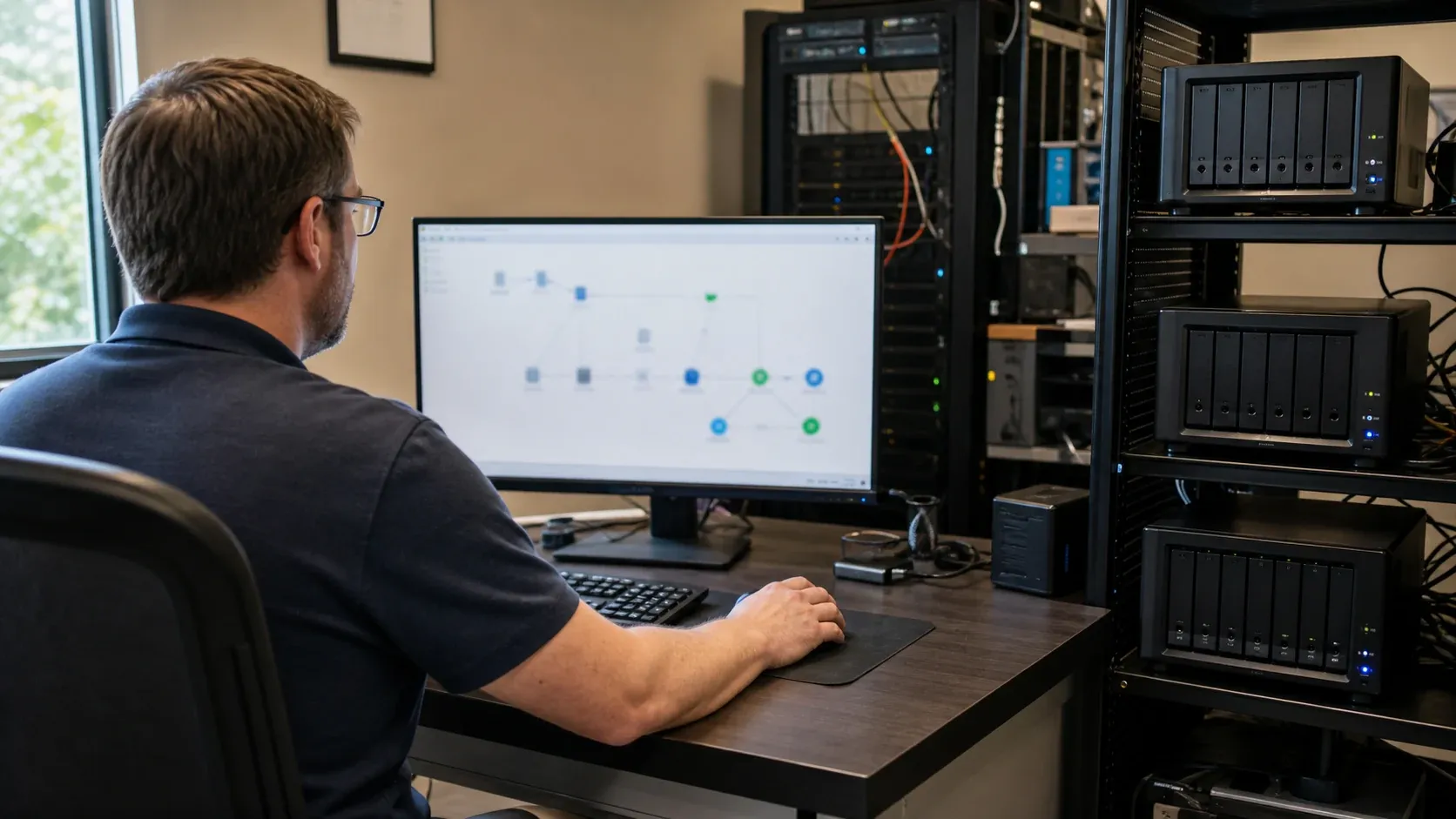
Choose folders and a transfer route
Use a one-time transfer for a single handoff. For repeated work, choose one-way or two-way sync according to which location owns the files. Check the destination and deletion behavior before using a production folder.
Compare the folder sync modes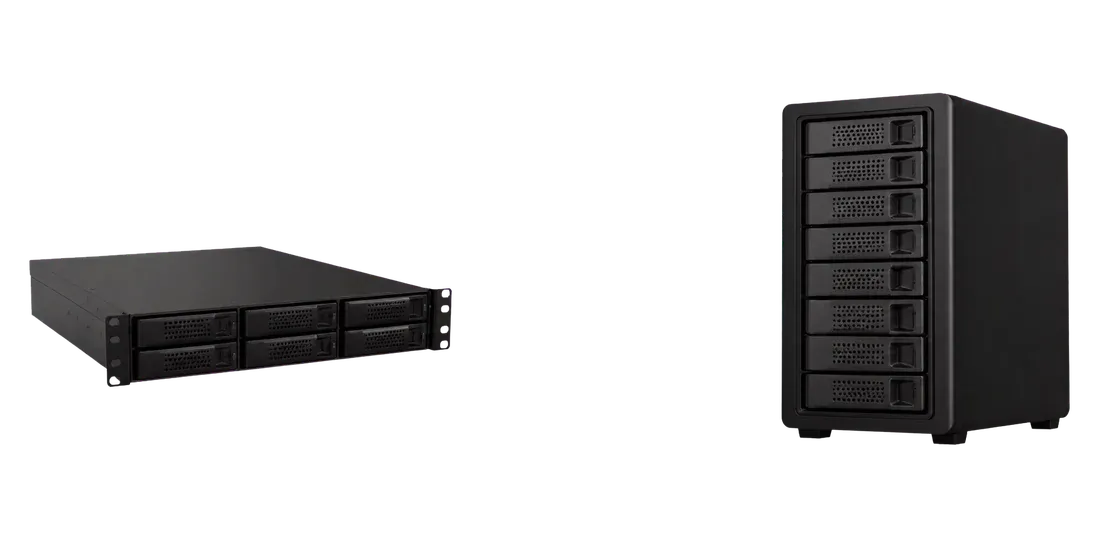
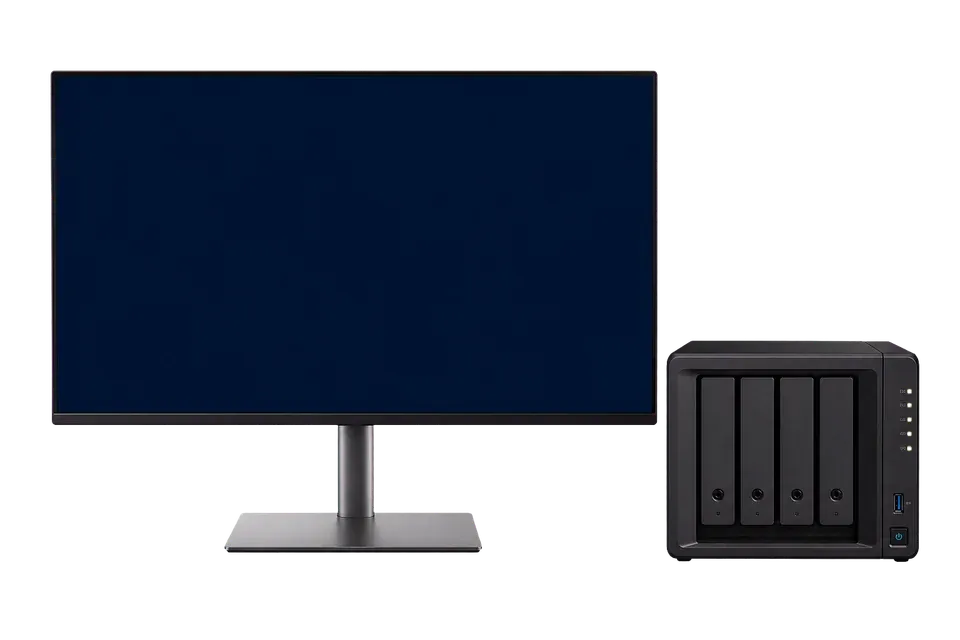 One control plane
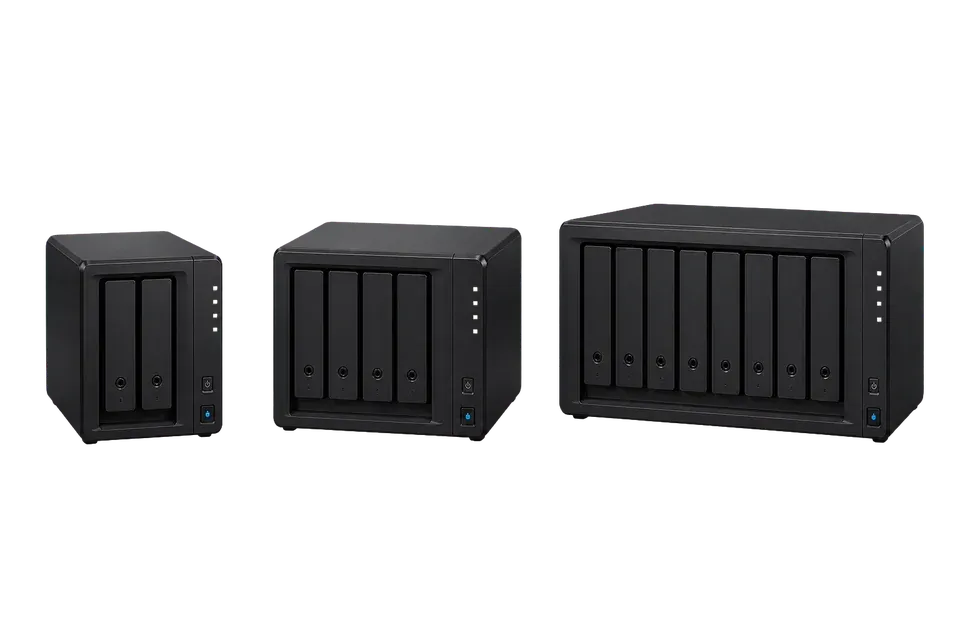 Managed NAS fleet
Operate with an AI agent
Connect a compatible MCP client to your WarpSend account. Start by asking it to inspect endpoint and job status, then use the access required for the transfer or sync operations you want it to perform.
Set up authenticated MCP accessPrepare the NAS and its shared folders
The current package is for x86_64 Synology devices running DSM 7 or later. Check the current Synology download against your model before installation. Open WarpSend on the NAS, sign in with a DSM administrator account, and complete pairing with your WarpSend account. DSM sign-in authorizes local NAS administration; account pairing connects the endpoint to your WarpSend organization.
Select the shared folders involved in the job and grant the WarpSend package account access to them. Confirm the source is readable, the destination is writable, and the receiving NAS has enough free space. Try a one-time transfer before creating a recurring sync job. Direct connections require no user-configured inbound port forwarding; the managed Shuttle fallback requires a paid endpoint transfer plan.
Connect an AI agent to your WarpSend account
In the app, open Connect AI Agents and follow the configuration instructions for your client. Use the supplied MCP server URL and, for clients that support it, complete OAuth sign-in in the browser. Review the account and client requesting access before approving the connection. The client stores its credentials; they do not belong in a chat prompt.
Read access lets the agent inspect status. Write access adds supported changes, while admin access covers destructive or security-sensitive operations. Choose the access needed for the task, then start by checking the connected endpoints and an existing job. MCP uses the NAS endpoints and folder permissions you already configured; connecting an agent does not install the NAS package or grant it access to additional shared folders.
Use the transfer method that fits the NAS job
MULTI-NAS • ONE- OR TWO-WAY SYNC
Many-to-many site synchronization
Keep working folders aligned among headquarters, branch offices, studios, and remote teams without maintaining a separate script or DSM session for every NAS pair.
QUIC / UDP • MIRROR • RESUME
Distribute datasets or keep an offsite copy
Send approved datasets from a central NAS to the sites that need them, or maintain a readable offsite copy. File-level transfer and sync do not preserve snapshot history or create a versioned backup; keep the appropriate recovery tool alongside them.
Plan a one-time NAS transferAI AGENT • MCP SERVER
AI-operated recurring workflows
Ask an authenticated agent to inspect a stopped transfer, check endpoint health, or perform a supported sync operation. The tools available to it depend on the access granted to the MCP client.
Field guides
Plan NAS transfers and recovery
Decision-first guides for Synology transfer, replication, migration, and troubleshooting — including when a native backup or snapshot tool is the correct layer instead.
Synology NAS replication: choose the right sync method
Snapshot Replication vs Hyper Backup vs ShareSync vs Presto vs WarpSync, by recovery objective.
Read guideSynology QuickConnect large file download fails?
Why relayed 50GB downloads stall, and the direct, resumable ways to deliver large files from a NAS.
Read guideSynology Drive ShareSync slow?
A symptom-first checklist for finding the actual NAS, network, route, or file-count bottleneck.
Read guideTailscale NAS transfer slow?
Why overlay-network NAS transfers underperform, and how to diagnose the actual bottleneck.
Read guideShare large files from a busy NAS
Serve big downloads without starving the production or backup workload the NAS is already running.
Read guideMove files from Google Drive or a DAS to a Synology NAS
Export, stage, and verify a migration into the NAS without losing structure or versions.
Read guideFrequently asked questions
What is multi-NAS data orchestration?
Multi-NAS data orchestration is the control layer above individual storage devices. Instead of configuring each transfer or sync relationship separately on each NAS, an orchestration platform keeps endpoints, source and destination folders, job state, schedules, progress, and history in one operating model. WarpSend provides that control layer for supported Synology NAS, desktop, and server endpoints.
Can I manage multiple Synology NAS devices from one portal?
Yes. Install the WarpSend agent on each supported Synology NAS and sign the endpoints into the same workspace. They appear in one portal where you can create and monitor one-time transfers, one-way mirrors, and two-way sync jobs across sites.
How does the WarpSend MCP Server work with AI agents?
Open Connect AI Agents in the WarpSend app and follow the instructions for your MCP client. Clients that support interactive login authenticate through the browser using OAuth. Read access supports inspection; write and admin scopes make additional operations available. The client acts through your authorized account and still needs the relevant endpoints and folders to be configured.
Does WarpSend replace Snapshot Replication or Hyper Backup?
No. WarpSend orchestrates file-level transfer and synchronization; it does not create Btrfs snapshots, versioned backup repositories, or DSM configuration backups. Use Synology’s native tools when you need those recovery semantics, and use WarpSend when the requirement is managed file movement or sync across multiple sites and endpoint types.
Do I need to configure port forwarding or DDNS on every NAS?
No. Users do not configure inbound port forwarding for WarpSend. The agents establish an encrypted direct route when the network allows it. When a direct path is unavailable, transfers can fall back to the encrypted Shuttle relay, which requires a paid speed tier.
What happens when a long-distance NAS transfer is interrupted?
WarpSend resumes from verified progress rather than restarting the entire job. That behavior applies underneath the orchestration layer, so a flow managed from the portal or through an AI agent keeps the same transfer reliability model.
Why does WarpSend use QUIC over UDP for cross-site NAS transfer?
Cross-site links add latency, loss, and changing network conditions. WarpSend uses QUIC over UDP so the transfer engine can keep more data in flight, recover individual streams without stalling the entire job, and resume from verified progress after an interruption. The result is a data plane designed for large NAS datasets moving between distant sites, not just LAN-style copies stretched across the internet.
Manage your NAS transfers from one place.
Connect two supported endpoints and try a representative folder on the route you use. Check completion time, destination files, and recovery after an interruption before expanding the workflow.
Create a free account