Automatic folder sync software. Keep every location in sync.
One-way or two-way sync jobs between your computers, servers, and NAS. New files move automatically, interrupted transfers resume from verified progress, and every job stays visible from one dashboard.
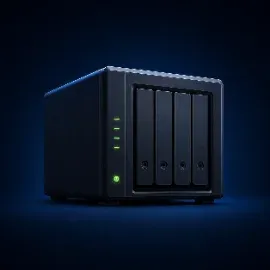

Two-way sync. Both locations stay current without anyone sending files.
Hot folders. Drop a file in, WarpSync delivers it to the destination.
Automatic resume. Interrupted transfers continue from where they stopped.
Your storage. Connects the devices you already run — no migration.
Set the folders and direction. WarpSync handles subsequent transfers.
Keep offices in sync
Both locations follow the same folder. Editors pick up what the other office added without asking for it.
Hot folders
Turn any folder into a drop point. A file that lands there is picked up and delivered automatically.
High-volume folders
Queue large masters or folders of small assets, with automatic retries after interruptions.
Set up a folder sync job.
3 steps · no migrationConnect your endpoints
Install the WarpSend Agent on both devices and pair them with your account. Make each folder available as a Share in the app so it can be selected for sync.
Choose how files should move
In Replication, choose New Sync Pair and select the source and destination Shares. Use Tunnel for one-way or two-way sync, or Shuttle for one-way push through cloud staging.
Let WarpSync run
Choose continuous sync or a schedule, then review the first run in the activity history. Check the destination before leaving the job to transfer subsequent changes automatically.
Recover after a connection drops. Jobs resume from verified progress when the endpoints reconnect.
Chunked
Files are transferred in chunks, with progress tracked as the destination receives them.
Verified
Every chunk is checksummed on arrival and the whole file again before the job is marked complete.
Resumable
Interrupted jobs resume from verified progress when the endpoint reconnects.
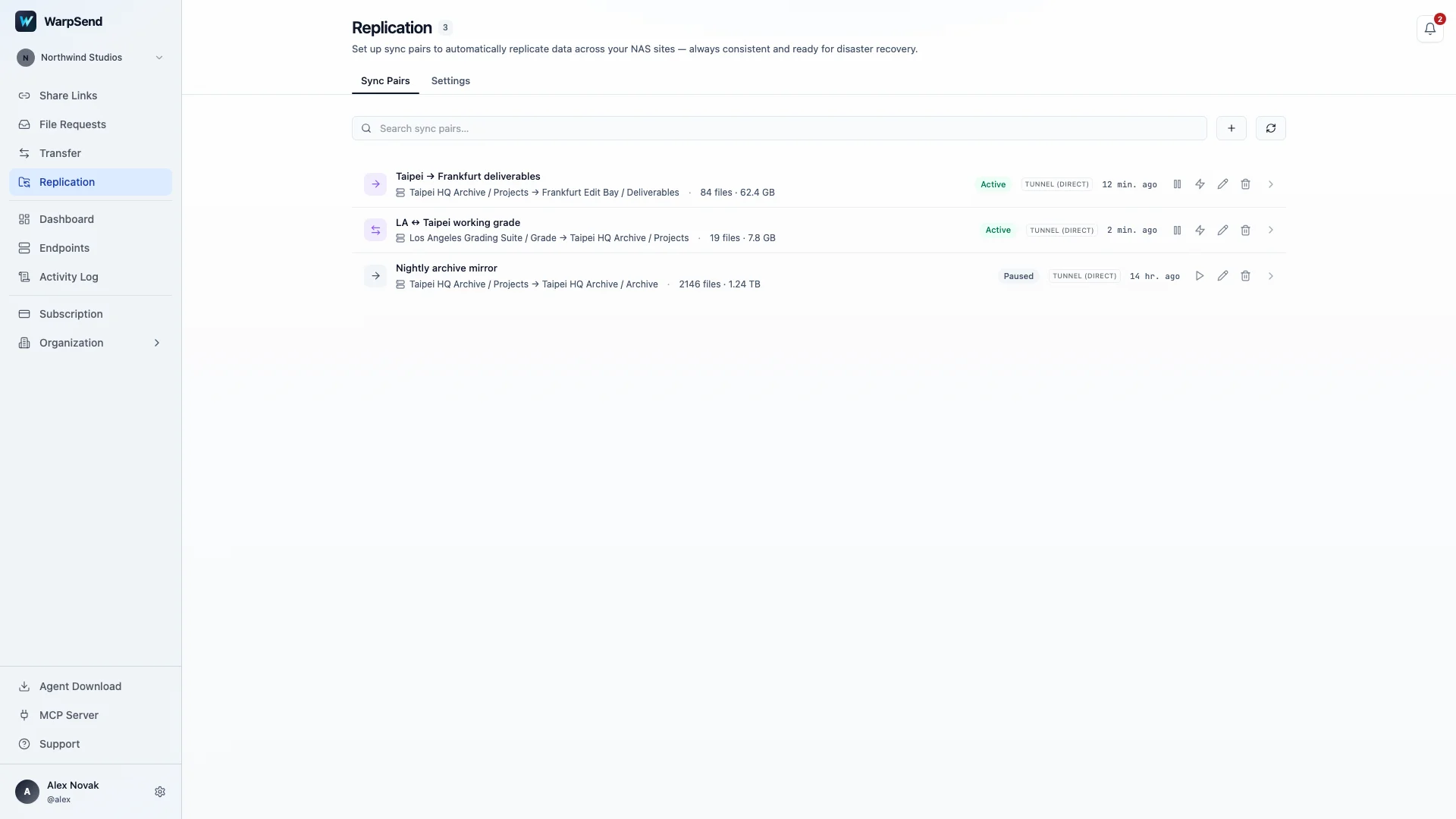
Check each job’s status, including transfers waiting for an endpoint to reconnect.
Use the storage you already have.
WarpSync connects the devices and storage your team already uses. Nobody has to migrate data into another cloud platform before files can move.
Your existing devices remain the source and destination.
No migration. Point WarpSync at macOS, Windows, Linux, Synology, or your own servers.
Choose the transfer route. Tunnel connects endpoints directly. Shuttle uses encrypted cloud staging for one-way delivery when a direct route is unsuitable.
Authenticated endpoints. Each endpoint authenticates with its own agent credentials.
Complete activity record. Detected, queued, transferred, completed or interrupted — all timestamped.
Choose a route that fits how the two locations work.
Tunnel for changes in both directions
Two-way sync requires a working direct connection between the endpoints. Use Tunnel when both locations need to send updates, and keep both devices online while a transfer runs. Tunnel also supports one-way jobs.
Shuttle for one-way delivery
Shuttle sends changes from the source to the destination through encrypted cloud staging. It supports one-way push only and can queue files while the destination is offline. Shuttle access depends on your UDP plan.
Before the first run, decide whether source deletions should remove files at the destination. The Propagate deletions setting controls this behavior. A synchronized copy does not provide versioned recovery by itself; keep a separate backup when earlier versions must remain recoverable.
Open Replication and create a sync pair after both devices and their Shares are ready.
Related guides
Design a reliable NAS sync plan.
Choose the right replication method, seed large datasets safely, and estimate how long each migration stage will take.
Synology NAS cross-site replication
Compare Snapshot Replication, Hyper Backup, ShareSync, rsync, and continuous sync.
Read guideSeed Synology Drive ShareSync safely
Reduce the initial WAN copy while preserving a controlled cutover and validation path.
Read guideSeed Snapshot Replication with USB
Plan the initial copy, consistency check, and incremental catch-up phase.
Read guideSynology Drive ShareSync slow?
A symptom-first checklist for finding the actual NAS, network, route, or file-count bottleneck.
Read guideTailscale NAS transfer slow?
Why overlay-network NAS transfers underperform, and how to diagnose the actual bottleneck.
Read guideSAN-to-SAN replication over a WAN
Array replication, host-level copies, and file-level sync compared for distance and recovery goals.
Read guide