No account required for uploaders.
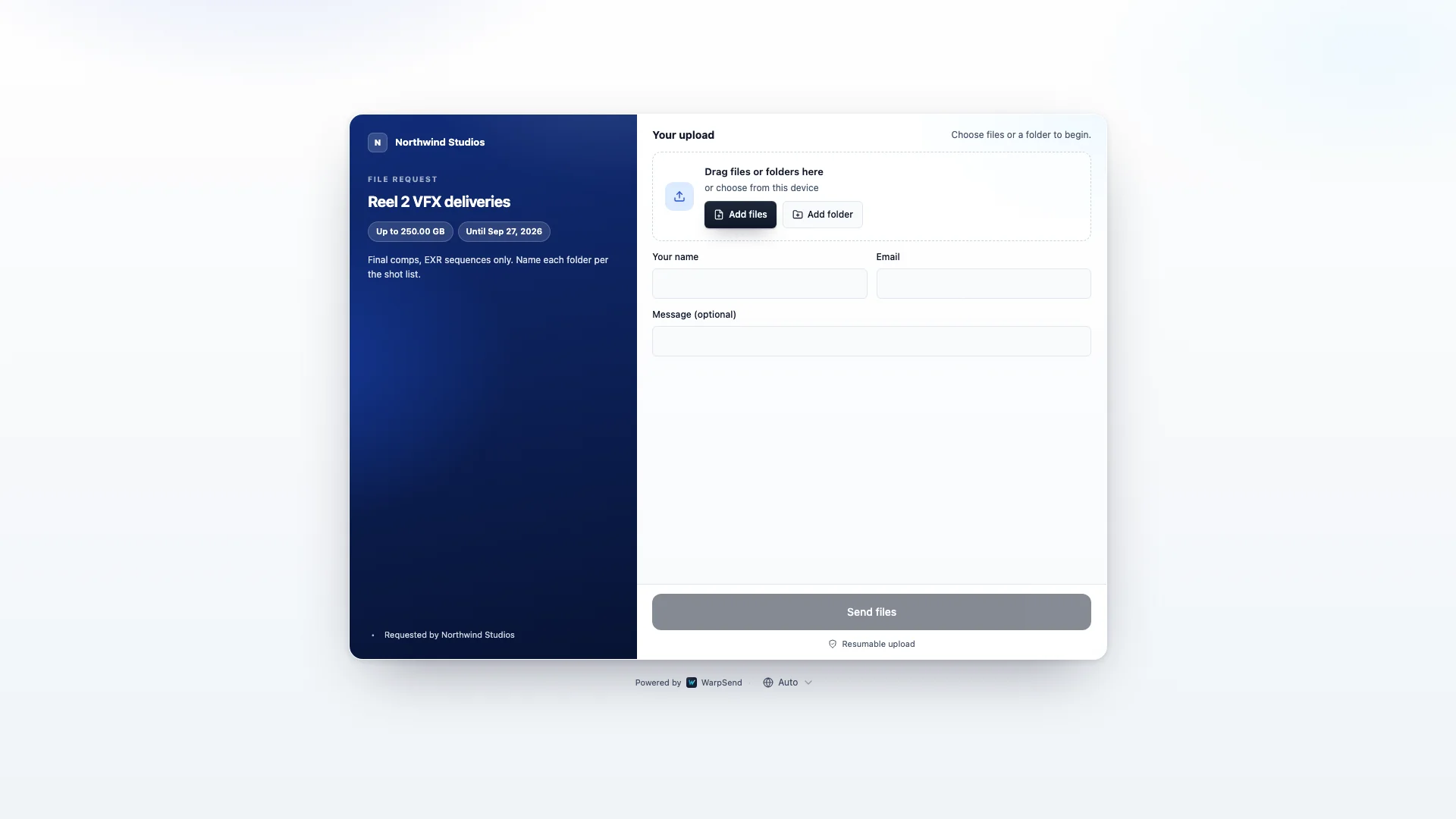
Clients, photographers, vendors, and collaborators open your link and send files or folders in their browser. No WarpSend login, app, or plugin.
FILE REQUESTS · INBOUND DELIVERY
Give clients one browser link for sending large files or folders, with no uploader account or app. Collect submissions in WarpSend, or have them delivered automatically to a folder on your computer or NAS.
Example with automatic delivery to a NAS enabled. Uploads wait in the cloud inbox until the device is online.
WHY FILE REQUESTS
Clients, photographers, vendors, and collaborators open your link and send files or folders in their browser. No WarpSend login, app, or plugin.
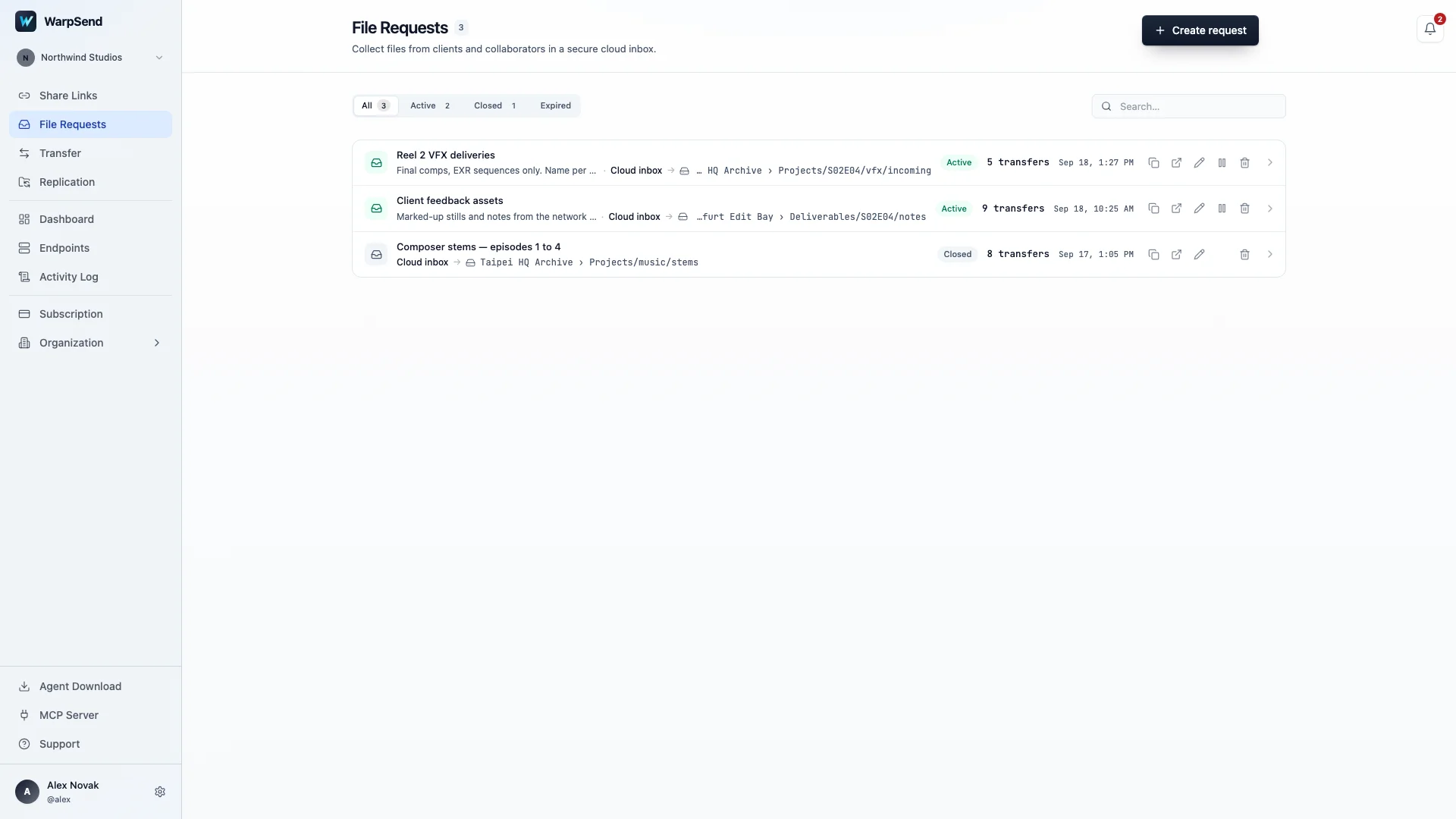
Collect files in a cloud inbox to download later, or turn on automatic delivery to a folder on your computer or NAS. Automatic deliveries arrive in separate submission folders.
Clients can finish uploading while your receiving device is offline. If automatic delivery is enabled, WarpSend queues the submission until that device reconnects.
For automatic delivery, install the WarpSend Agent on the receiving device and add its receiving folder as a Share in the app. Connect the device before creating the request so it is available to select; it can go offline after setup. Cloud collection does not require a receiving device.
Incoming uploads use the request owner’s WarpShare allowance. Retention beyond the included term is billed separately for the days served. Compare collection and retention terms.
CONTROL THE INBOX
Uploaders see the request title, instructions, and rules. Other submissions stay private, as do the device and destination folder you select for automatic delivery.
Keep one link open for a client, shoot, vendor, or department instead of creating a new handoff for every batch.
Protect a request with a password and set an optional collection deadline.
Ask for a name, name and email, or allow anonymous submissions. Uploaders can add a message.
Set the maximum size per submission and optionally cap how many submissions the link accepts.
Pause new submissions without interrupting active uploads, or permanently close the link when the job is done.
See what is uploading, waiting for your endpoint, receiving, received, or in need of a retry.
COMMON USES
PRODUCTION
Create a request for each shoot and enable automatic delivery to the studio NAS, with files organized by submission.
CLIENT INTAKE
Send a branded upload link so clients can submit files without shared-drive access.
VENDORS
Vendors use the upload page without access to your storage or anyone else’s submissions. You choose whether to download their files or deliver them to a receiving device.
SECURITY BOUNDARY
Enable WarpSignet for your organization to create an end-to-end encrypted request. With encryption selected, file contents are encrypted in the uploader’s browser before cloud storage and decrypted when you download them or an authorized endpoint receives them. Requests created without this option do not have end-to-end encryption.
Even with end-to-end encryption, file names, relative paths, sizes, uploader details, and delivery status remain visible to the service so WarpSend can manage the transfer. Read about encryption and access controls.
Related guides
Guides for collecting camera originals, running a remote edit, and setting up client delivery on the same account.
Choose the right workflow for large camera originals and tight turnarounds.
Read guideProxies, full-resolution transfer, remote desktop, or a hybrid, compared by team and footage size.
Read guideCollect files with one link, deliver with another, and move the very large handoffs device to device.
Read guidePlan how footage reaches editorial, color, and client delivery.
Read guideSTART COLLECTING FILES
Choose your collection settings and send clients one link for the files your team needs.
Create a file request