Client File Delivery Workflow: Send Large Files with a Clear Handoff
Build a client file delivery workflow for large assets: freeze a version, choose the right transfer, check the download, and confirm usable receipt.
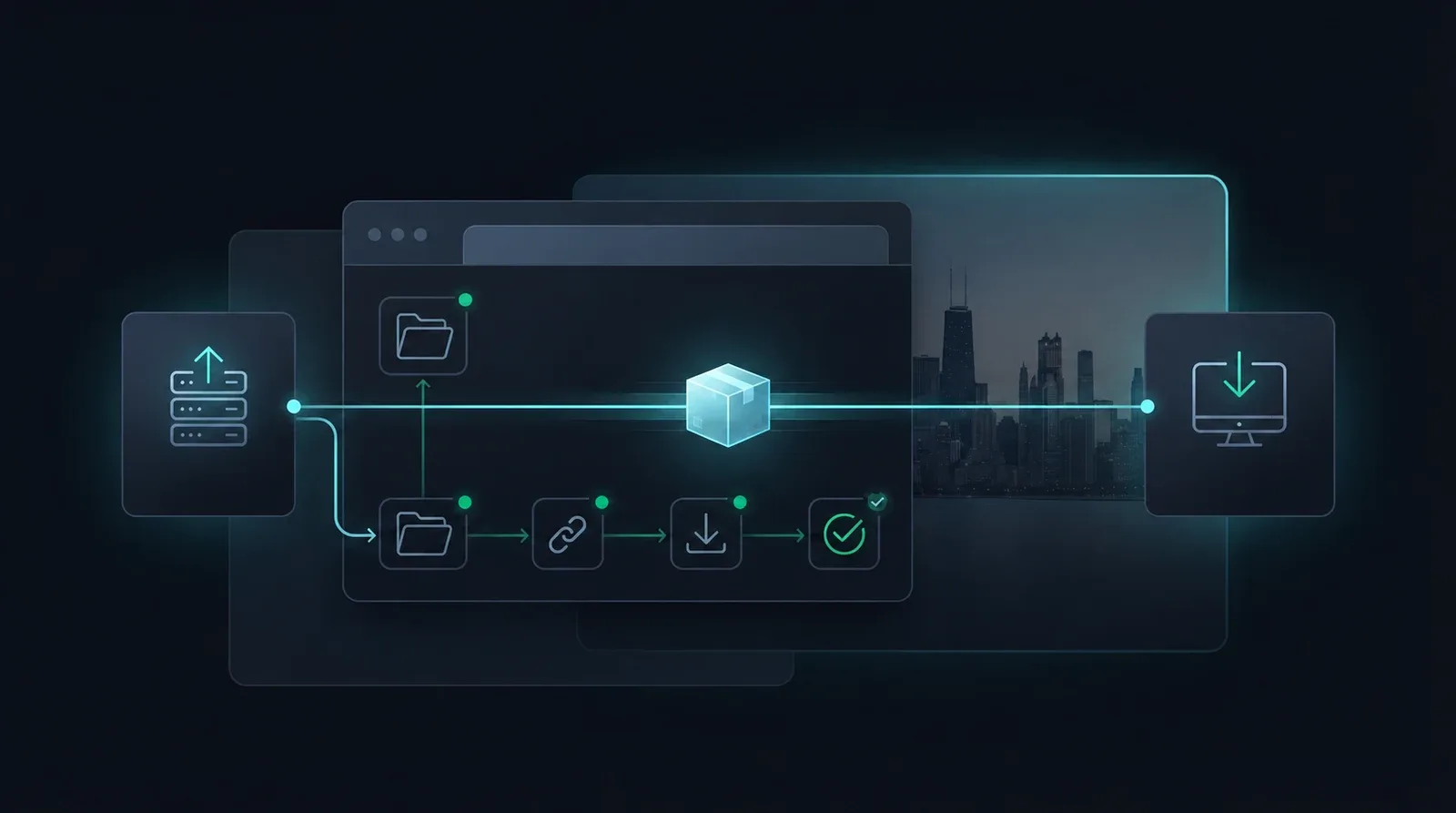
A client file delivery workflow should end with the recipient opening the right version, not just with a completed upload. To send large files to clients, prepare a fixed delivery package, choose a method they can use, check the download path, and ask for a specific receipt confirmation.
Imagine delivering a campaign master, a social export and subtitles. All three files can transfer successfully while the client still publishes an older cut or misses the subtitle file. The handoff needs to identify both the package and the action: review this version, approve it, or save the approved assets.
Define the package before choosing the link
Keep the working project separate from the delivery folder. Give each release a version and status, then check its contents against the agreed deliverables. A small, explicit package is easier to verify than a shared workspace containing drafts, cache and unrelated source material.
For example, a delivery folder could look like this:
Campaign_v03_for-review/
  Campaign_v03_master.mp4
  Campaign_v03_social.mp4
  Campaign_v03_subtitles.srt
  README.txt
The README can name the version, list the expected files and explain which export serves which purpose. Include format, language or aspect-ratio notes when they affect how the client will use the assets. Keep an internal record of the delivery date, recipient, link and version so you can answer “Which package did we send?”
Open the exported files before packaging them. Check the relevant video, audio, captions or document pages, rather than relying on the filenames. If you use an archive, extract a copy and verify its contents too. These are content checks; a successful transfer cannot tell you whether you selected the right export.
When a correction is needed, create v04 and say what it replaces. Avoid silently changing an already delivered package. An explicit replacement lets the client distinguish a new revision from an incomplete earlier download.
Match the transfer method to the client’s next step
A small attachment can be sufficient if it fits both mail systems. If the files already live in a shared workspace that the client can use, a new upload may be unnecessary. For a large finished package, a dedicated download link usually gives a clearer boundary between work in progress and delivery.
| Client’s next step | Suitable starting point | Check before sending |
|---|---|---|
| Retrieve a finished export or package | Download link | Actual download access, expiry, password and available storage |
| Comment on work that is still changing | Existing collaboration workspace | Correct audience, role and review version |
| Receive files on a managed computer or NAS | Endpoint transfer | Both endpoints, destination folder and an agreed operator |
| Keep selected working folders aligned | Folder synchronization | Direction, change ownership and conflict handling |
In WarpSend, WarpShare provides browser download links, WarpDirect handles endpoint transfers, and WarpSync handles folder synchronization. A synchronized working folder still needs a clearly identified release when it is time for final delivery. File Requests run in the opposite direction: clients upload material to your team.
The client delivery solution explains the product choices. For detailed link creation, use the WarpShare guide.
Check access and the downloaded file
Test the recipient-facing link after the upload is ready. For an account-free handoff, open it while signed out and follow the download action. For a restricted invitation, check the intended recipient identity and permission rather than widening access simply to make a test work.
Preview and download are separate capabilities. For example, Google Drive’s sharing documentation distinguishes viewing roles from download controls, and organization policies can restrict external sharing. Seeing the file in your own account does not prove the client can save it. The recipient signup guide explains these access choices across services.
Ask the recipient to allow space for the download and, when applicable, the extracted package. Check that the agreed format opens in their intended application. A private-window test catches some permission mistakes, but it does not reproduce the client’s device or company network.
For an important master or archive, a checksum provides an additional integrity check. In PowerShell, replace the example path with the actual file and run:
Get-FileHash -LiteralPath 'C:\Delivery\Campaign_v03.zip' -Algorithm SHA256Send the resulting hash through the agreed communication channel. The recipient runs the same command on the downloaded file and compares the Hash values. Microsoft documents how Get-FileHash works. Compare the same version of the same file; an archive and its extracted contents will not have the same hash. A match supports byte integrity, not creative approval or proof of the sender’s identity.
Send one message with a clear action
Put the version and purpose next to the link. Include an expiry only if one is configured, with its timezone, and send a password through the agreed separate channel. A handoff message can be this simple:
Campaign v03 is ready for review. The link contains the master, social export and subtitles listed in README.txt.
Download: [insert delivery link]
Please confirm that all three assets download and open, then send consolidated feedback through our usual review channel. This replaces v02.
For approved work, change the request to saving and confirming the final assets. Do not call a review package “final” just because its upload is complete.
Close the handoff with a useful receipt
Track three separate milestones: the upload is ready, the client has downloaded and opened the expected files, and the authorized reviewer has approved the work. A download counter cannot establish the last two by itself.
If the client reports a problem, identify the stage before sending another copy:
- The link will not open: check the exact link, intended account, password, expiry and any download limit.
- The download stops: check the reported error, destination space and network conditions. Follow the tool’s documented retry or resume behavior; do not assume every browser download resumes.
- The file downloads but will not open: compare the file/version and, if supplied, checksum. Then check extraction, format and application compatibility.
- The wrong version arrived: compare the delivery message with the package record and issue an explicitly numbered replacement.
Keep the source package until the agreed receipt and retention requirements are met. A temporary delivery link should not be the only retained copy. The useful finish line is a client who can identify, open and act on the intended files.
When the recipient must continue editing rather than use an export, package the editable project and verify its dependencies before delivery.
Frequently asked questions
What should I do if the files change after delivery?
Create an explicitly numbered replacement, describe what changed, and tell the client which earlier package it supersedes. Avoid silently replacing files behind a link that people have already downloaded.
Does a completed download mean the client approved the work?
No. Download activity, confirmation that the files open, and approval of the work are separate milestones. Agree on who approves the deliverable and how that approval will be recorded.
Does a client need a WarpSend account to receive a delivery?
WarpShare recipients can download through a browser link without a WarpSend account. The sender signs in to manage the link. Any configured password, expiry or download limit still applies.
When is a checksum useful?
Use one when the recipient needs to check that a downloaded master or archive matches the supplied file. Compare SHA-256 values for the same file and version. A matching checksum does not establish that you exported the correct creative content.
Should I send an archive or individual files?
Use an archive when the agreed delivery is one package that the recipient can extract. Keep files separate when the client needs to select assets individually. Check the recipient’s software and available disk space before choosing.