WarpShare Guide: Create and Check a File Download Link
Create a WarpShare download link, set its access and check the recipient handoff. See how sharing differs from direct transfer and sync.
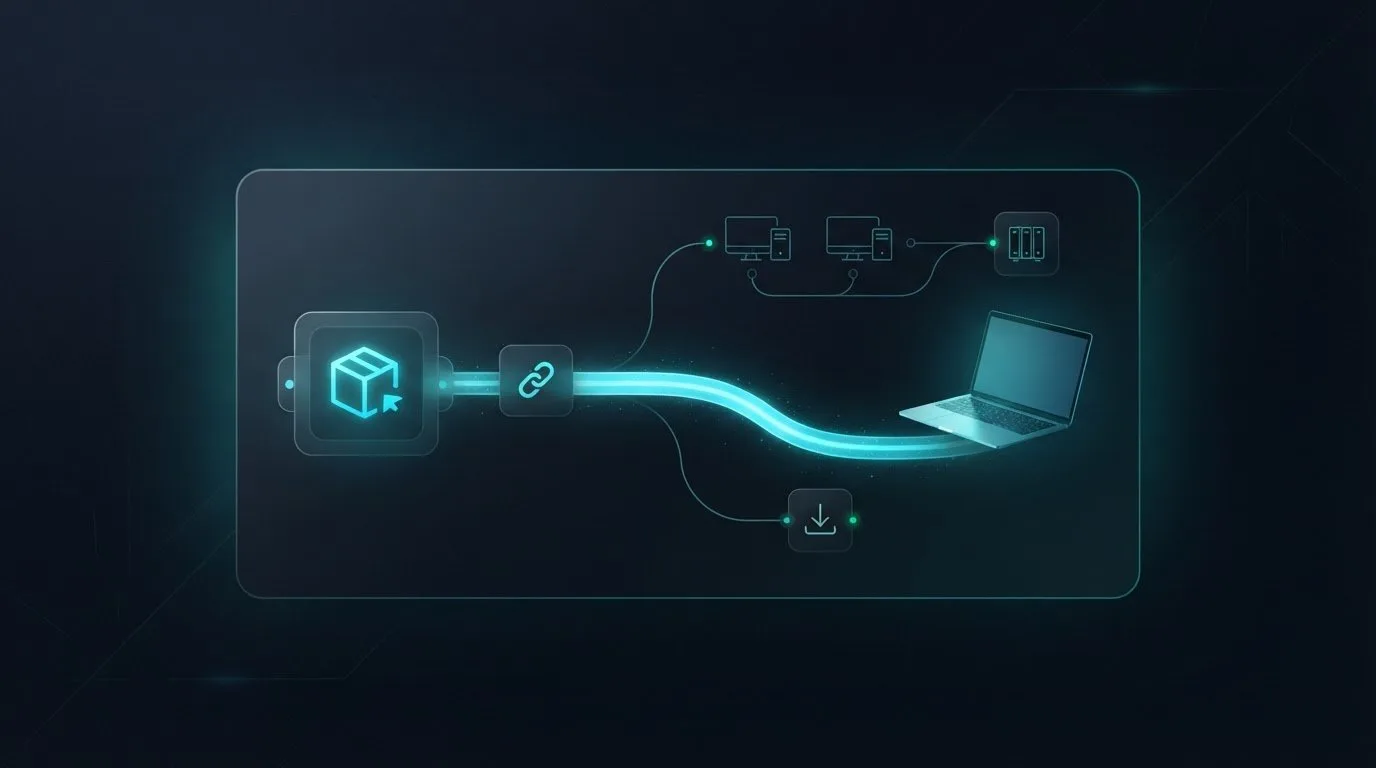
WarpShare creates a file download link that recipients can open in a browser without a WarpSend account. Use it when you have a finished export, design package or project folder to deliver and the recipient needs a copy, rather than access to your working environment.
This WarpShare guide follows that handoff from file selection to recipient verification. The sender signs in to prepare and manage the delivery; the recipient uses the resulting link. Passwords, expiry and download limits remain separate access conditions.
For a comparison of access settings across services, see how to share files without recipient signup, including when an email verification step is still useful.
If the browser upload itself is interrupted or rejected, use the browser upload guide to check size rules and resume behavior before starting another job.
First, identify the product
WarpSend’s WarpShare is the download-link workflow at warpsend.io. A separate open-source Android application named WarpShare describes Android-to-Mac transfers using AWDL. The shared name does not make it part of WarpSend.
For this workflow, start from the WarpSend website and workspace. The recipient does not need that Android application, an endpoint installation or an invitation to your organization to open a WarpShare download link.
Choose the workflow by what happens next
A client downloading an approved video and an editor receiving a continually changing project folder have different needs. Choose the workflow before preparing the delivery.
| What you need to do | WarpSend workflow | What the other side uses |
|---|---|---|
| Deliver an uploaded file or folder for someone to download later | WarpShare | Browser download link |
| Move files between paired computers or NAS devices | WarpDirect | Supported WarpSend endpoints |
| Keep configured folders synchronized across locations | WarpSync | Supported endpoints and a configured sync job |
| Collect source material from a client | File Requests | Browser upload link |
WarpDirect and WarpSync are distinct workflows. A one-time endpoint transfer does not, by itself, create a continuing folder-sync job. Likewise, a WarpShare link does not update the recipient’s downloaded copy when you edit the original file.
An email attachment or an existing shared drive can be sufficient when it already meets the recipient’s needs. WarpShare is useful when the handoff calls for an independent download link and the recipient should not have to join your workspace.
Create the link from the correct source
Prepare a delivery folder containing only the intended files. Separate approved exports from working drafts, and use a recognizable name such as Campaign_Approved_2026-09-28. A name like final-final2 leaves the recipient guessing which version you meant.
In the WarpSend workspace, open Share Links and choose the file source:
- From this device: select a local file or folder for browser upload. Keep the uploading tab open until the process finishes; hiding a progress panel is different from closing the browser.
- From my endpoint: select an online paired endpoint and browse its available share. This lets you choose material on that device without first copying it onto the computer running the browser. The endpoint uploads the selected material to cloud storage.
The second option still creates a cloud-backed download link. It is not a direct browser connection to an always-online NAS. Once the upload and link creation finish, the original source device does not need to stay online for recipients to download during the link’s valid period. For a NAS that is also doing other work, see sharing large files from a busy Synology NAS.
Check the size limit shown for your selected source and the available upload allowance before starting. Browser folder uploads and endpoint-backed deliveries have different preparation paths; do not assume a folder that exceeds one route’s limit can be sent unchanged through it.
Set access before sending
Give the link a clear name and, where useful, a short description of the delivery. The link settings include an optional password, expiry and an optional maximum download count. Choose them for the recipient’s actual working window.
A client in another time zone may not open the message immediately. State the expiry with a date, time and time zone rather than saying “tomorrow.” If you set a download limit, account for your own verification download and the client’s other authorized reviewers.
Send a password through a separate agreed channel. A password is an access requirement; it does not establish the recipient’s identity or prevent someone from forwarding a downloaded copy. Encryption also depends on the upload source and link type. Use the security overview when evaluating protection requirements rather than treating every link as the same encryption scheme.
For especially sensitive material, confirm that the link’s controls fit the organization’s requirements before uploading. Keep identity-restricted collaboration in a system that provides it when that is what the project needs.
Wait for “Link ready,” then check the handoff
The workspace distinguishes uploading links from ready links. Wait for Link ready, copy the link and test the recipient-facing page in a browser session where you are not signed in.
Check that the page identifies the expected delivery, that any password works, and that the download reaches the intended file. For a folder, inspect the downloaded package’s contents and open a representative file. A visible download button confirms that a page loaded; it does not confirm that the recipient has a usable copy.
This is also a useful point to catch missing source files, an unexpectedly short expiry or a limit consumed during testing. Keep your original delivery package until the recipient confirms receipt.
A concise delivery message could read:
The approved campaign export and supporting graphics are ready at the link below. Please download the package before 30 September, 17:00 UTC, and confirm that the files open correctly. I will send the password through our agreed second channel. Reply here if access fails.
Adapt that example to the actual link settings. If the delivery is for review rather than final use, say so directly. Download history can help you follow up, but it is not a substitute for confirmation that the client received the correct version.
Diagnose the stage that failed
When a recipient cannot get the files, establish whether the problem is link access, transfer completion or the package itself before changing settings.
| What you observe | What to check | What the result tells you |
|---|---|---|
| The workspace still shows an upload in progress | The source browser or endpoint, progress and any reported upload error | The delivery is not ready to hand off yet |
| The download page says expired or unavailable | Link state, expiry and the configured download limit | Access conditions need attention; this alone says nothing about network speed |
| The recipient reaches the page but cannot complete the download | Available local storage, browser message and connection; try a small representative file when available | Access succeeded, so investigate the download and destination separately |
| Download finishes but the package is incomplete or the wrong version | The original selected files, file list and an opened sample from the downloaded copy | Revisit packaging or file selection; changing permissions will not correct the package |
Ask for the exact error message without requesting the link password or confidential file contents. If you replace a delivery, name the new version and tell the recipient which link it supersedes. Avoid widening access just to make an error disappear.
For transfers that appear complete but are still finalizing or being verified, the guide to a file transfer stuck at 100% explains how to distinguish those stages.
Keep delivery costs and retention separate
WarpShare sharing and collection are billed by upload volume; multiple recipients and repeat downloads do not add download fees. Keeping files beyond the included retention period is a separate billing dimension. Current pricing lists the applicable allowances and retention options.
That makes the delivery window part of your workflow: allow enough time for the client to retrieve the package, then manage the link according to your retention needs. Stopping future access does not remove copies that recipients already downloaded.
For your next handoff, prepare one clearly identified package, choose its access conditions, wait for the link to become ready and verify the recipient path. Those steps give the client a usable delivery rather than just another URL.
Frequently asked questions
Do WarpShare recipients need a WarpSend account?
No. A recipient opens the download link in a browser without a WarpSend account. A password-protected link still requires its password, and expiry or download limits can prevent access. The sender creates and manages links from a signed-in workspace.
Does the sender need to stay online?
Keep the uploading browser or source endpoint online until the upload and link creation finish. Once the link is ready and the files are in cloud storage, recipients can download during its valid period without the original device staying online.
Is WarpShare the Android app with the same name?
No. WarpSend’s WarpShare creates browser download links. The unrelated open-source Android application also called WarpShare describes Android-to-Mac transfers. Check the product’s website and developer before choosing a download.
Can I use a share link to keep a client folder synchronized?
A share link delivers the uploaded files; it does not continuously synchronize the recipient’s local folder. Use WarpSync for configured folder synchronization, WarpDirect for endpoint-to-endpoint transfers, and File Requests to collect incoming files.
What should I check before sending a large folder?
Check the size and contents, the limit shown for the selected upload route, available recipient storage, link expiry and any download limit. After the link is ready, test access outside your signed-in session and verify the downloaded folder’s expected contents.