Continuous Folder Sync Across Workstations: Choose the Update Cadence
Choose continuous folder sync across workstations or scheduled updates by the recipient’s needs. Separate change detection, transfer and usable file revisions.
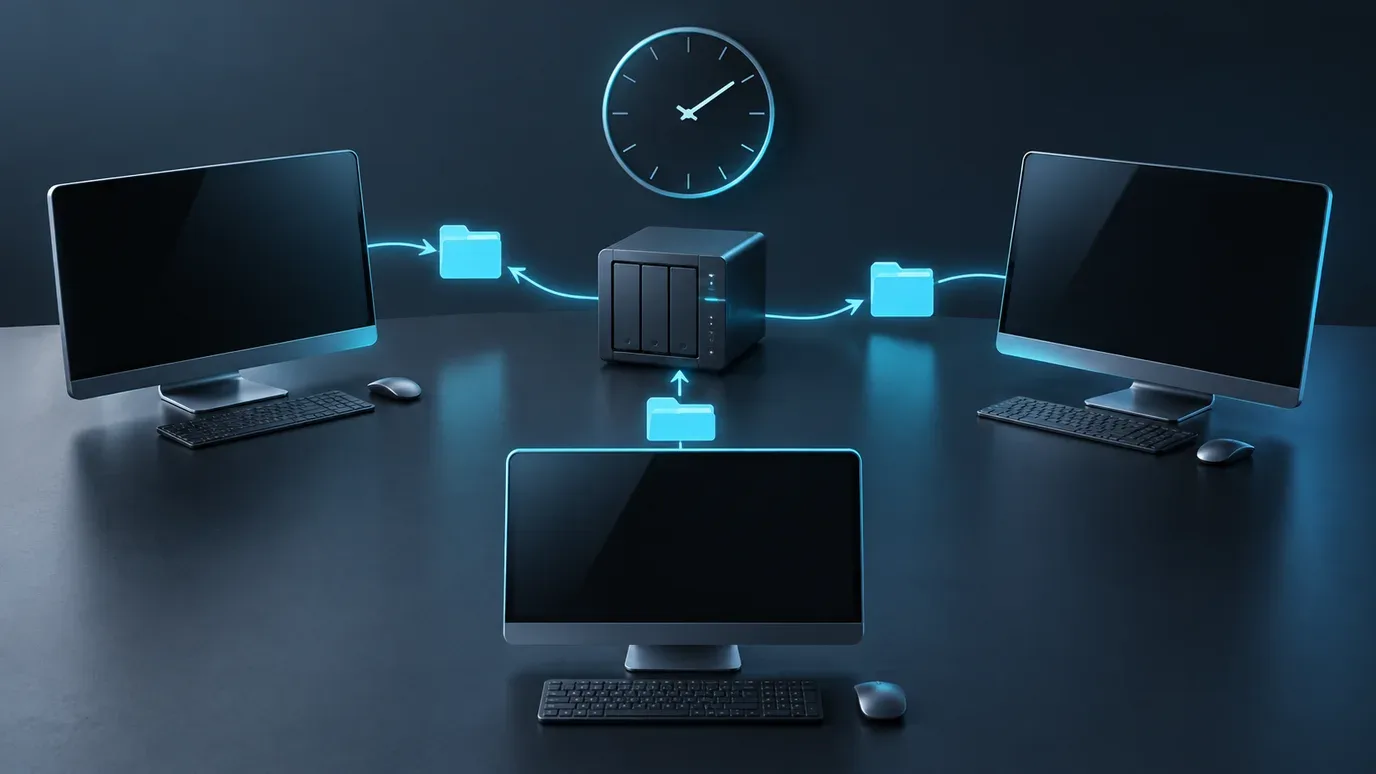
For continuous folder sync across workstations, choose the update cadence around when the next person needs a saved revision. Use continuous updates when work should begin soon after a change is ready. Use scheduled updates when a defined refresh window is acceptable. In either case, confirm the receiving files are usable before the next handoff.
“Continuous” does not mean every device changes at the same instant. Detection, preparation, transfer and the receiving application are separate stages. Understanding those stages helps you choose a sensible mode and investigate delay without changing unrelated settings.
Separate update timing from sync direction
Cadence answers when a job looks for or distributes changes. Direction answers where changes may travel. A one-way folder can update continuously or on a schedule, and a tool may support scheduled two-way synchronization. Check the combinations available in the actual product.
A destination that needs fresh assets does not necessarily need permission to send edits back. Set editing ownership first; then select the timing. The active-project folder setup guide covers folder scope, direction, conflicts, deletion behavior and recovery tests.
Also establish where the working files live. Reading a mounted NAS share and synchronizing a local copy are different arrangements. Use the computer-to-NAS access and sync guide if that boundary is unclear.
Choose the next useful update, not the shortest interval
Ask the receiving person what they need next: each saved asset as it becomes available, a refreshed folder before a planned work session, or a named package that stays unchanged during review.
| Update approach | Suitable receiving workflow | What to confirm before use |
|---|---|---|
| Continuous synchronization | The receiver needs newly saved assets throughout the workday | The relevant change was detected and transfer completed |
| Scheduled synchronization | Work can wait for an agreed refresh window | The run actually occurred and included the expected revision |
| Deliberate transfer or export | A recipient needs one defined handoff or review package | The package is complete, named and kept stable during delivery |
These are workflow choices, not a speed ranking. A scheduled run can fit an overnight refresh; continuous updates can fit workstations consuming assets as they are produced. A defined export can be more useful for review than a folder whose contents keep changing.
Choose an acceptable age for the receiving copy together with the team. If the receiver often waits for a scheduled run, revisit the cadence. If constant arrivals interrupt a review of a specific revision, use a stable handoff package instead. Avoid choosing an interval solely because it is the smallest value in a settings screen.
Understand what “continuous” detects
A sync tool needs to discover changes before it can distribute them. Mechanisms and timing differ between tools and filesystems.
Syncthing’s synchronization documentation, for example, describes filesystem notifications alongside periodic full scans. Its watcher accumulates changes before triggering a scan. Syncthing recommends retaining regular scans because notifications can miss some changes.
Its configuration reference separates the rescan interval, watcher enablement and the delay before a watcher-triggered scan. Those are Syncthing settings, not instructions for another product. The useful lesson is to distinguish the trigger from the completed update: a watcher notification does not prove that another workstation already has the file.
Check detection support for the location you actually synchronize, especially if a workstation reads a mounted network share. A successful local-folder test does not establish identical behavior on a different filesystem or mount. Confirm the chosen tool’s documentation and observe that specific path before relying on it.
Find the stage that is waiting
When a receiver has an older revision, follow the same saved file through the workflow. Use the tool’s activity and errors where available; status names vary.
- Source revision: confirm the application saved or exported the expected file into the selected source path. An unsaved edit cannot be distributed as a file change.
- Detection and preparation: check whether the job noticed that revision or still needs to scan it. If detection is late, shortening a transfer retry interval addresses a different stage.
- Transfer and availability: check whether the receiving endpoint is online and the change is pending, moving or complete. A job enabled on the sender cannot deliver to an unavailable receiver.
- Receiving use: inspect the destination path, then open the intended revision. An application that still has an older document open may not reflect a file that has already arrived.
Distinguish an initial folder population from a later update. A new workstation may still need the existing contents before subsequent changes become useful. Record the relevant file and observed stage rather than describing the whole folder as “slow.”
If the file arrived but the project cannot open correctly, return to the project setup and dependency checks. Faster detection alone does not make an open application database or incomplete export a consistent handoff.
Make availability part of the schedule
A schedule is useful only if the participating systems can run it. Check what the chosen software does when the workstation sleeps, the NAS is unavailable or a run is missed. Do not assume that every tool automatically queues missed runs or catches up in the same way.
Choose a small, saved sample representative of the real work. Observe it with the intended cadence and device availability, including a reconnect. This establishes whether the update arrives when the receiver needs it. Use the existing setup guide’s disposable-file rollout for conflict, deletion and recovery behavior rather than experimenting on live project data.
For a creative handoff, file arrival and permission to start editing remain separate decisions. The creative-project sync guide explains how to associate the received revision with editing ownership, feedback and approval.
Where WarpSync fits
WarpSync handles recurring synchronization of selected folders between participating computers and NAS endpoints, with direction and continuous or scheduled updates. Choose those settings for the receiving workflow, then check activity and the destination files.
Use WarpDirect for a deliberate endpoint-to-endpoint transfer or WarpShare for a download link to a defined package. Current plan information is on pricing.
Start with the receiver’s next task and the latest revision it requires. That gives you a practical cadence to verify, along with a clear place to investigate when the expected update has not arrived.
Frequently asked questions
Does continuous folder sync update every workstation instantly?
No. A saved change must be detected, prepared and transferred to an available receiver. Some tools batch notifications before scanning. Continuous describes the update mode, not a guaranteed arrival time or a safe way to edit the same project simultaneously.
Can scheduled sync still be two-way?
Yes, when the chosen tool supports that combination. Cadence controls when updates run; direction controls where changes may travel. Check the tool’s actual folder modes and keep editing ownership separate from those settings.
Why is a changed file still old on another workstation?
Check whether the source revision was saved, the sync job detected it, the transfer completed and the receiving application opened the updated path. An offline endpoint, detection delay, pending transfer or an already-open older revision requires a different next step.