How to Sync Active Project Folders Automatically
Sync active project folders automatically with clear folder scope, edit ownership and a rollout test for conflicts, deletions and recovery.
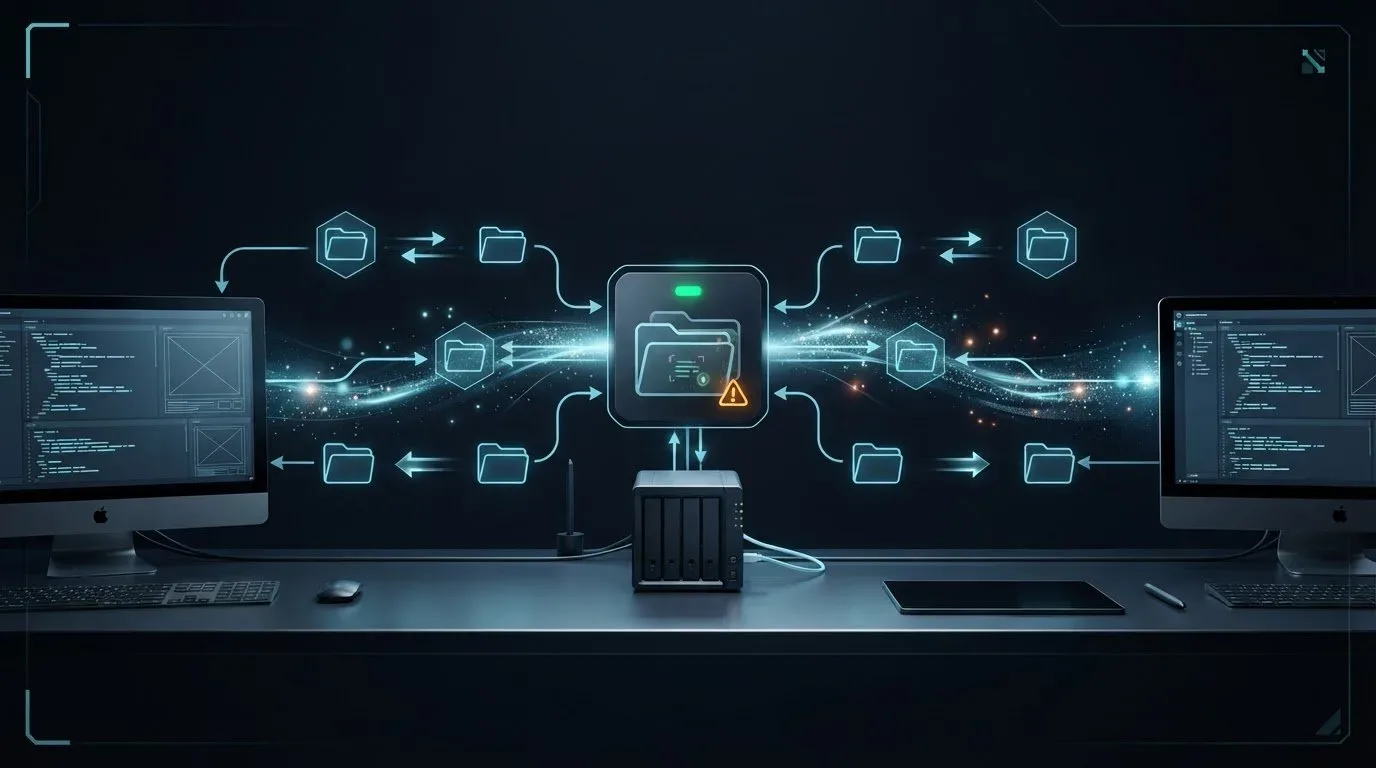
To sync active project folders automatically, choose the folders and devices that need current copies, set the direction and schedule, and test changes before connecting live work. Start with one project and explicit editing ownership so automatic copying does not create competing versions of the same file.
A workstation-to-NAS arrangement can keep selected assets available to the team. It cannot, by itself, make an open project database safe to copy or turn simultaneous binary-file edits into a single approved revision. The setup needs both a transfer rule and a rule for when another person may use the result.
If you are still choosing between a mounted NAS share and a local copy, first use the computer-to-NAS access and sync guide to identify where the working files live.
Decide who sends changes and who edits
For a workstation that publishes assets to a NAS, start with one direction: workstation to NAS. Treat the destination as a receiving location. If people also need to edit there, decide how those changes return before enabling a second direction; two unrelated one-way jobs are not a substitute for a supported two-way configuration.
For multiple editing workstations, use the application’s collaboration or source-control workflow where available. Otherwise, assign one editor at a time to each shared project file. A handoff should identify the saved revision, confirm synchronization completed, and release editing ownership.
Folder modes have tool-specific meanings. For example, Syncthing distinguishes send-only, receive-only and send-and-receive folders. Receive-only affects synchronization behavior; use filesystem permissions as well when a destination must prohibit local edits. Do not assume similarly named modes in another tool have identical semantics.
For daily editing, review and approval decisions after setup, use the creative-project sync handoff guide. It separates file arrival from the revision and decision being handed over.
Define a small folder boundary
Record each device’s actual path, its owner, the sync direction and what people may change. The paths need not be identical, but their relationship must be clear. Check available space and permissions with the account that runs synchronization, including after a restart or NAS remount.
Here is an illustrative split for a creative project:
Project-A/
  Working/       # local editing and application state
  SharedAssets/  # selected assets synchronized to approved devices
  Published/     # saved, versioned packages ready for handoff
  Cache/         # reproducible workstation data kept local
This is a planning example, not an ignore-file syntax. Configure the selected roots or exclusions in your tool. If the existing application requires a particular folder layout, preserve it and choose sync boundaries around that requirement.
Include dependencies needed to reopen the work, not just the project file. Keep machine-specific caches and temporary output local when they can be regenerated. Do not exclude a folder merely because its name looks temporary: confirm its role with the application’s documentation and reopen the copied project on the destination.
For a live database, use its supported export or backup mechanism before synchronizing the resulting file. SQLite’s Online Backup API, for example, provides a consistent database snapshot while coordinating with database access. Copying arbitrary files out of an open application’s data directory does not provide that same guarantee.
Configure the pair, then prove the behavior
Connect the approved devices, select the source and destination folders, and choose a continuous or scheduled update mode that fits how people work. Begin with a disposable folder containing representative project files, nested folders and filenames used by your team. Save or export application files before testing their transfer.
If you are choosing between continuous and scheduled updates, the workstation sync cadence guide separates change detection from delivery and helps identify when the receiver actually needs a fresh revision.
The following table is a rollout test plan. Record the observed result for the exact software version and settings.
| Test | Check on the receiving device | What the result tells you |
|---|---|---|
| Add and edit a saved file | Correct path and content after completion | The selected roots and update direction work |
| Rename a file and its parent folder | New location is usable; no unexplained obsolete copy | How renames are represented and cleaned up |
| Delete a disposable file | Whether deletion propagates, and where recovery is available | The actual deletion policy, not what “sync” suggests |
| Edit the same sample on two disconnected devices | Which versions survive after reconnecting | Whether conflict handling meets the team’s editing rules |
| Reconnect an offline receiver | Expected pending changes arrive; errors are visible | How catch-up and interruption recovery work |
| Restore a deleted sample | Restored file opens and remains available after the next sync | Whether the recovery procedure works with synchronization |
An unexpected result is a reason to stop the rollout and resolve that specific rule. A conflict copy is evidence that both edits need review, not an approved merged project. If the correct files arrive but cannot open, investigate missing dependencies, application versions and save consistency before changing network settings.
For slow copying, separate initial population from subsequent updates. Record file count, total bytes and whether time is spent discovering files or moving their contents. The NAS replication guide covers site-to-site choices; use that when the problem is the NAS route or replication method rather than project ownership.
Keep recovery separate from distribution
Keep a recovery copy with its own retention and access controls. Confirm who restores files and how to pause synchronization during a restore, so an old deletion or unwanted edit does not immediately replace the recovered work.
Version history has boundaries. Syncthing’s versioning documentation says versioning is disabled by default and protects versions replaced by changes received from other devices, not earlier local edits on the same device. Check the equivalent scope and retention in your chosen tool; a version-history setting is not a complete backup plan.
For a finished delivery, preserve a named package in Published/ and send that revision. Keep later edits in another revision instead of changing the package while a recipient downloads it. For editable media projects, the remote editing workflow explains the handoff between media, project state and review.
Where WarpSync fits
WarpSync is WarpSend’s recurring folder synchronization workflow for participating computers and NAS endpoints. It supports selecting folders, direction and continuous or scheduled updates. Configure those choices for the project, then inspect synchronization activity and the destination files before expanding the scope.
Use WarpDirect for a deliberate endpoint-to-endpoint transfer, and WarpShare when a recipient needs a download link for a defined package. These address different handoffs. None replaces the application’s editing coordination or your independent recovery process. Current plan information is on pricing.
If your existing sync tool already meets the folder, conflict and recovery checks above, keep it. Start by documenting one project’s paths and running the disposable-file test; that establishes what the team can rely on before the next deadline.
Frequently asked questions
Can I sync a workstation with a NAS automatically?
Yes, with compatible synchronization software on the participating systems. Select the exact folders, direction and schedule, then test changes on disposable files before adding production work. WarpSync handles recurring folder synchronization; WarpDirect handles deliberate file transfers.
Does two-way sync prevent conflicting edits?
No. Two-way sync distributes changes; it does not decide which edit is correct. Assign an editor or use application-supported collaboration, and test the tool’s conflict behavior before people edit the same file on different devices.
Can folder sync replace backup?
No. A mistaken change can reach synchronized copies. Keep a separately managed recovery copy, check version-retention settings and prove that a deleted sample file can be restored.