Sync Files Between Computers and NAS: Shared Folder or Local Copy?
To sync files between computers and NAS, first choose shared access or local copies. Compare mapped folders, synchronized files and on-demand downloads.
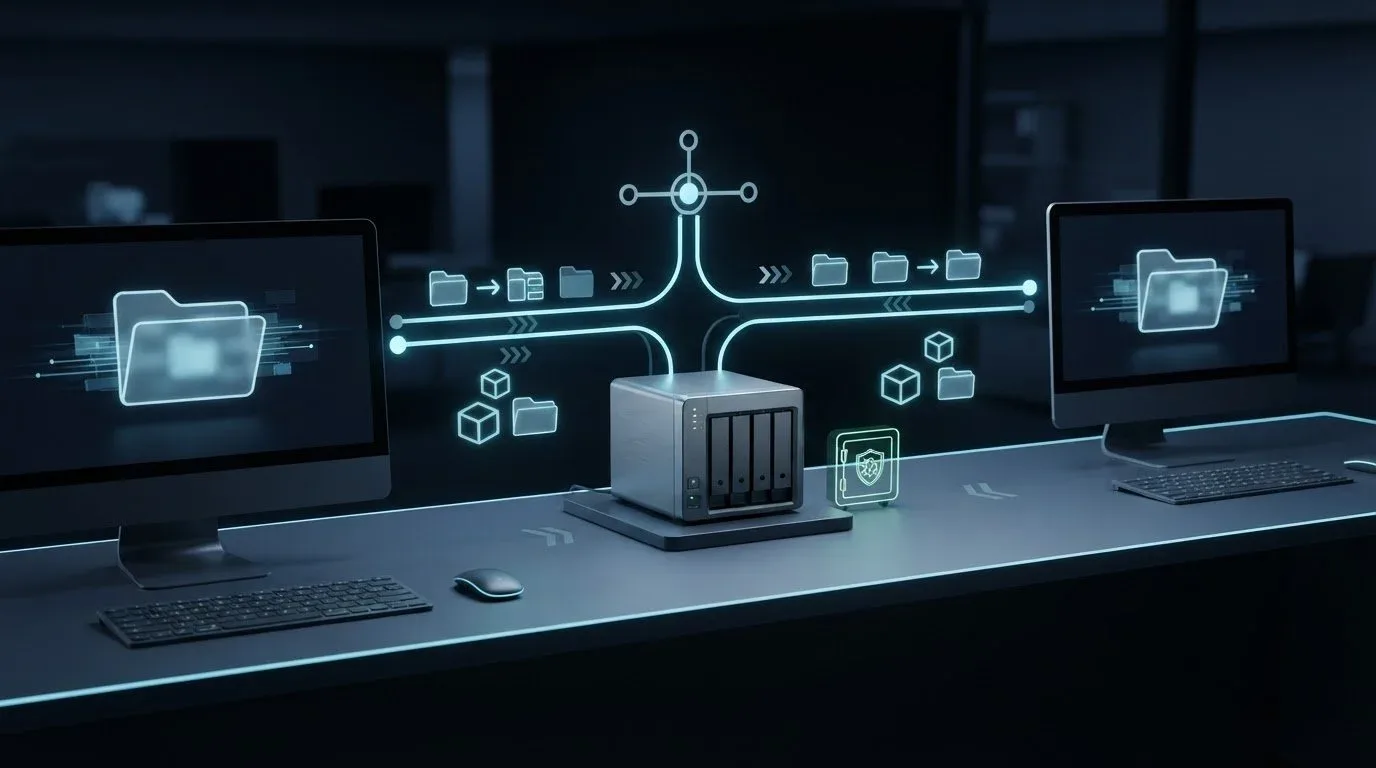
To sync files between computers and NAS, first decide whether people should work directly on the NAS or keep a synchronized copy on each computer. If a laptop must work without a connection to the NAS, merely mapping its shared folder is not enough.
A network folder, a local sync folder and an on-demand file listing can look similar in a file browser. They have different storage and availability boundaries. Identify those boundaries before choosing sync direction or adding more devices.
Find where the application is opening its files
Open the folder’s location information and record whether the application is reading from a NAS share or a local folder. Two shortcuts with the same project name may point to different copies. A successful save to one does not prove that the other is current.
| Arrangement | Where the working content lives | When it fits | What to verify |
|---|---|---|---|
| Direct shared-folder access | The application accesses files on the NAS | Connected work with a central location | Share availability, permissions and application support for network files |
| Local synchronized folders | Participating computers keep copies updated by a sync process | Work that needs local files and later exchange of changes | Local content, selected folder pair and pending updates |
| On-demand synchronization | The local listing can include content still held remotely | Browsing a larger library while retaining selected files locally | Which required files are downloaded and retained |
These are access arrangements, not speed rankings. The appropriate choice depends on application behavior, local storage and connection availability. Opening a project file locally while its linked images still point to the NAS does not make the whole project independent of the NAS.
Use shared access when a second working copy is unnecessary
For connected work, a mounted share may already provide the files people need. Each computer accesses the NAS location instead of maintaining a separate project copy through a sync job.
On Windows, Microsoft’s network-drive instructions describe This PC → Map network drive, where you select a drive letter and the shared-folder path. On a Mac, Apple’s server-connection guide uses Finder → Go → Connect to Server with the server’s address.
Those actions establish access, not a recurring copy relationship. Any separately configured offline caching needs its own checks. Confirm that the intended account can open and, when required, save to the approved folder; another person’s successful connection does not establish your access.
Use application-supported collaboration or a named editing owner for files that several people might change. A common NAS location is not proof that an application supports simultaneous editing.
Create local sync copies when the computer needs them
Choose a local folder and a corresponding NAS folder explicitly. Give the pair a recognizable name, and record which location may originate changes. Avoid operating on a similarly named downloaded folder outside the selected sync root.
For a Synology NAS, the current Drive Client setup tutorial requires Drive Server and enabled team folders, with folder and application permissions. The client then pairs a NAS folder with a computer folder. This is a separate setup from mapping a network share.
Select only direction and filtering options supported by the installed client and operating system. Start with a disposable folder before adding existing work. For change direction, conflicting edits, deletion behavior and recovery tests, follow the active project-folder sync guide rather than treating every two-way job as safe collaboration.
Synchronization distributes changes, including unwanted ones under some rules. Maintain an independent recovery process; a current local copy is not automatically a versioned backup.
Check on-demand content before leaving the NAS connection
Synology’s on-demand documentation distinguishes online-only files from downloaded or permanently pinned copies. The status controls differ by operating system.
For the work you need away from the NAS, select the required files and dependencies, use the client’s retention control where supported, and wait for their content to download. Verify them in the intended offline environment before relying on the arrangement.
Check the application as well as the file listing. A document may open while linked assets remain unavailable. An editable-project package check helps identify those dependencies. Do not infer offline readiness from filenames or folder counts alone.
Diagnose access and synchronization separately
If the mapped share cannot open, check NAS availability, the intended address and account permissions. If the share works but the sync client fails, check the client connection, application permission and selected folder pair. A working share does not prove that a different synchronization service is configured.
If a local file opens but changes never reach the NAS, confirm that it is inside the configured root and review pending or excluded work. If only some on-demand files fail away from the network, check whether their content was downloaded. If the project opens with missing resources, inspect its linked paths before recreating the sync task.
These observations help you choose the next check without deleting tasks, discarding copies or broadening access to make an error disappear.
Fit WarpSend to the chosen arrangement
WarpSend’s NAS workflows include WarpSync for recurring folder jobs between supported endpoints and WarpDirect for deliberate endpoint transfers. Neither turns a mounted share into a local copy merely because it is visible in the file browser.
Choose the actual endpoint folders, then apply the editing and recovery rules appropriate to the job. If your NAS-maker’s client already meets the local-copy and access requirements, you can keep that arrangement.
Begin with one computer: identify the folder the application opens, decide whether its files must be available without the NAS, and verify that requirement. Add other computers after that first boundary is clear.
If a copy stalls and the evidence specifically points to UDP drops, use the NAS UDP packet-loss diagnostic guide to separate interface errors, receiver pressure and capture loss before changing settings.
Frequently asked questions
Does mapping a NAS drive synchronize files to my computer?
Mapping makes a network folder accessible in the file browser. It does not by itself configure a local synchronized copy. Identify the actual file location and any separately configured offline behavior.
Will every file listed in an on-demand folder work offline?
No. Download the required content and verify it offline.
Should I use WarpDirect or WarpSync for recurring NAS updates?
WarpSync handles recurring folder synchronization between supported endpoints. WarpDirect is for deliberate file transfers. Choose the folder locations and editing rules before enabling recurring updates.