How to Share Large Files From a Busy Synology NAS
Diagnose slow downloads from a busy Synology NAS and choose scheduling, storage separation, direct transfer, traffic control, or staged delivery.
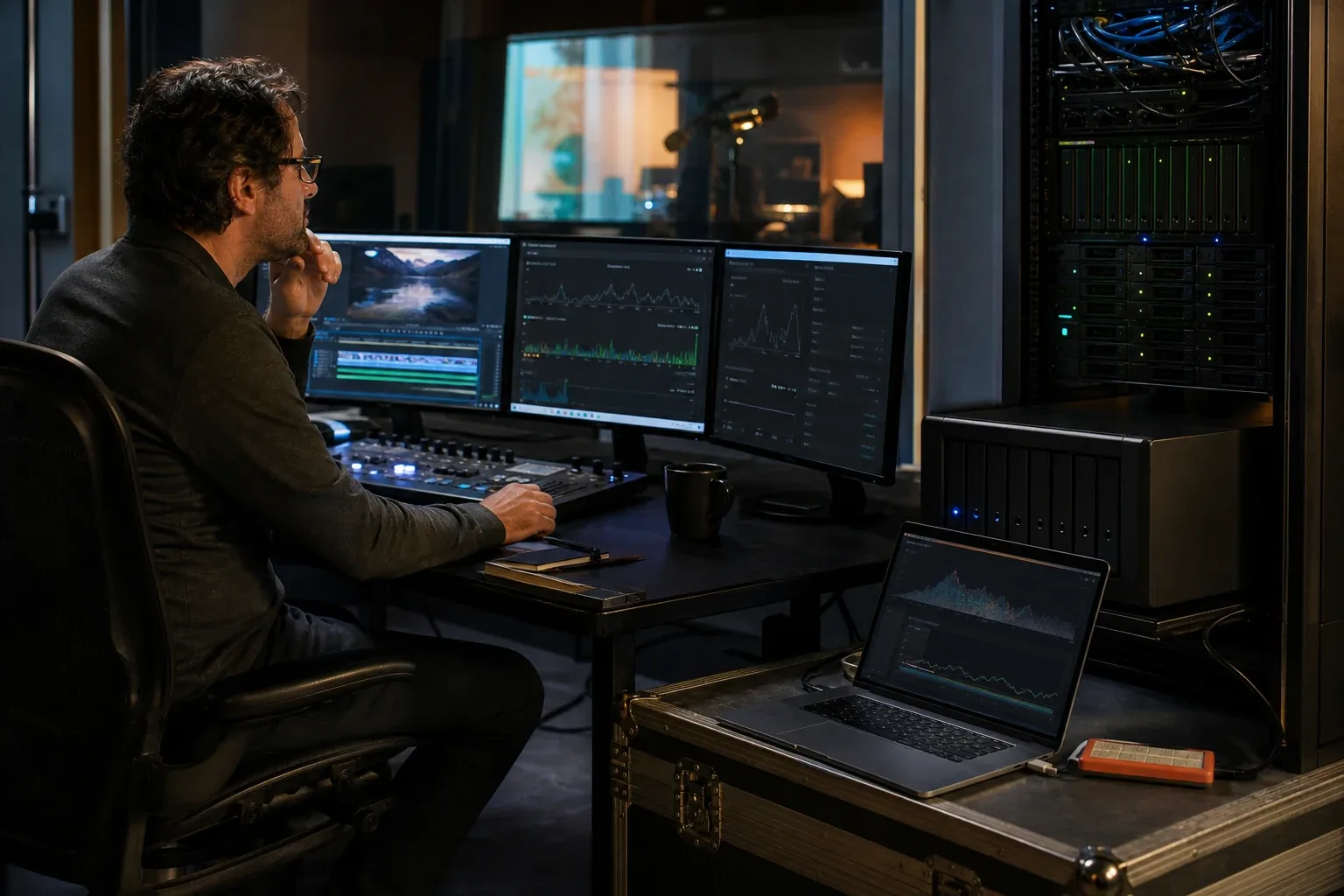
A Synology NAS serving a client download may also be writing render frames, indexing media, or running backup jobs. Those activities can compete for disk access and CPU even when the internet connection has spare capacity.
Observe the NAS while the download slows, then compare the same delivery with the competing job paused. That result helps you decide whether to schedule the work, adjust bandwidth, separate storage activity, or upload the finished package to a delivery service.
The four resources that can collide
1. Disk I/O
A render workload may create many files, update metadata, and flush writes continuously. A client download reads large sequential ranges from the same storage pool. On HDD arrays, head movement, parity work, filesystem metadata, and other background tasks can reduce the throughput available to both jobs.
2. Network upload
Rendering into the NAS usually uses LAN bandwidth. Serving an external client consumes the NAS site’s internet upload. Those may be different links, but the NAS NIC, router, QoS policy, and upstream queue can still become shared bottlenecks.
3. CPU and memory
Encryption, checksums, compression, thumbnailing, indexing, reverse proxy, and file-serving processes can contend with application workloads. A low CPU average can hide one saturated process or core.
4. Destination behavior
The client may be writing to a slow disk or repeatedly retrying over an unstable connection. Do not assume every slowdown belongs to the NAS.
Watch the problem while it happens
Synology Resource Monitor shows CPU, memory, disk utilization, and network flow, with optional usage history. Open it before the transfer and record the period where speed drops. See Synology Resource Monitor.
Record:
- disk utilization and latency;
- volume read and write throughput;
- network transmit and receive;
- CPU by process;
- memory pressure and swap;
- active backups, scrubs, indexing, and snapshots; and
- the exact time the client observed the slowdown.
The goal is correlation. “The NAS was slow later” is not enough.
Use a measurement matrix so each result points to a layer:
| Test | Render state | Recipient | What it isolates |
|---|---|---|---|
| Local large-file read | Stopped | LAN client | Source pool and file service baseline |
| Local large-file read | Active | LAN client | Storage and CPU contention |
| Remote large-file download | Stopped | External client | WAN and delivery path |
| Remote large-file download | Active | External client | Combined contention under production load |
| Remote download to fast local SSD | Either | External client | Removes a slow recipient disk from the comparison |
Record sustained throughput, not the first burst. Memory cache can make the beginning look healthy before the workload falls back to disk or upstream limits.
Test a clean baseline
Run the same large-file download under three conditions:
- render stopped;
- render writing to the NAS; and
- render writing while an unrelated local disk test runs.
If the download is fast only when rendering stops, the contention is real. If it remains slow with rendering stopped, investigate the external path and client.
Also test a local LAN read of the file. A healthy local read plus a slow external delivery points away from the storage array and toward the WAN or delivery protocol.
Option 1: Schedule the delivery
The simplest solution is often operational:
- finish the deliverable;
- wait for the render application to close or flush the file;
- verify the final size and readability;
- transfer during a defined window; and
- resume production writes afterward.
This avoids simultaneous load and prevents recipients from downloading a file that is still changing.
Option 2: Separate scratch, primary storage, and delivery
Where the hardware allows it, keep temporary render/cache workloads on fast scratch storage and copy only completed outputs to the NAS or delivery volume. This reduces small-write contention against large reads.
Do not redesign storage based on one anecdote. Measure the current pool and confirm that disk contention—not WAN upload—is the limit.
Option 3: Use direct endpoint transfer
For a single paired recipient, a direct file-transfer client can provide resume, job history, and explicit completion. WarpDirect is one option between supported endpoints. The Synology NAS transfer overview covers installing it on a NAS and checking completed jobs.
Direct transfer still reads from the source NAS and consumes the source uplink. It improves the delivery workflow; it does not remove source contention.
Option 4: Stage the finished file once
For browser delivery or multiple recipients, upload the completed file once to a dedicated delivery service. After staging finishes, recipients download without repeatedly reading from the source NAS.
WarpShare is one option. The sender uploads once, receives a browser link, and can take the NAS offline after the upload completes. This architecture is useful when:
- several reviewers need the same file;
- the sender should not remain online;
- the NAS must return to production work; or
- external users should not receive DSM access.
The trade-off is that the initial staging upload still uses NAS I/O and upstream bandwidth. Storage duration, access controls, cost, and deletion policy also matter.
Staging becomes more attractive as recipient count grows. A direct design reads and uploads the deliverable once per recipient. A staged design reads and uploads it from the NAS once, then the delivery service handles later downloads. For a 100GB deliverable and five recipients, that is roughly 500GB of repeated source egress versus 100GB of source egress, before retries. The staged path still needs enough time and capacity for its first upload.
Read How to Send Large Files Securely for the broader share-link design.
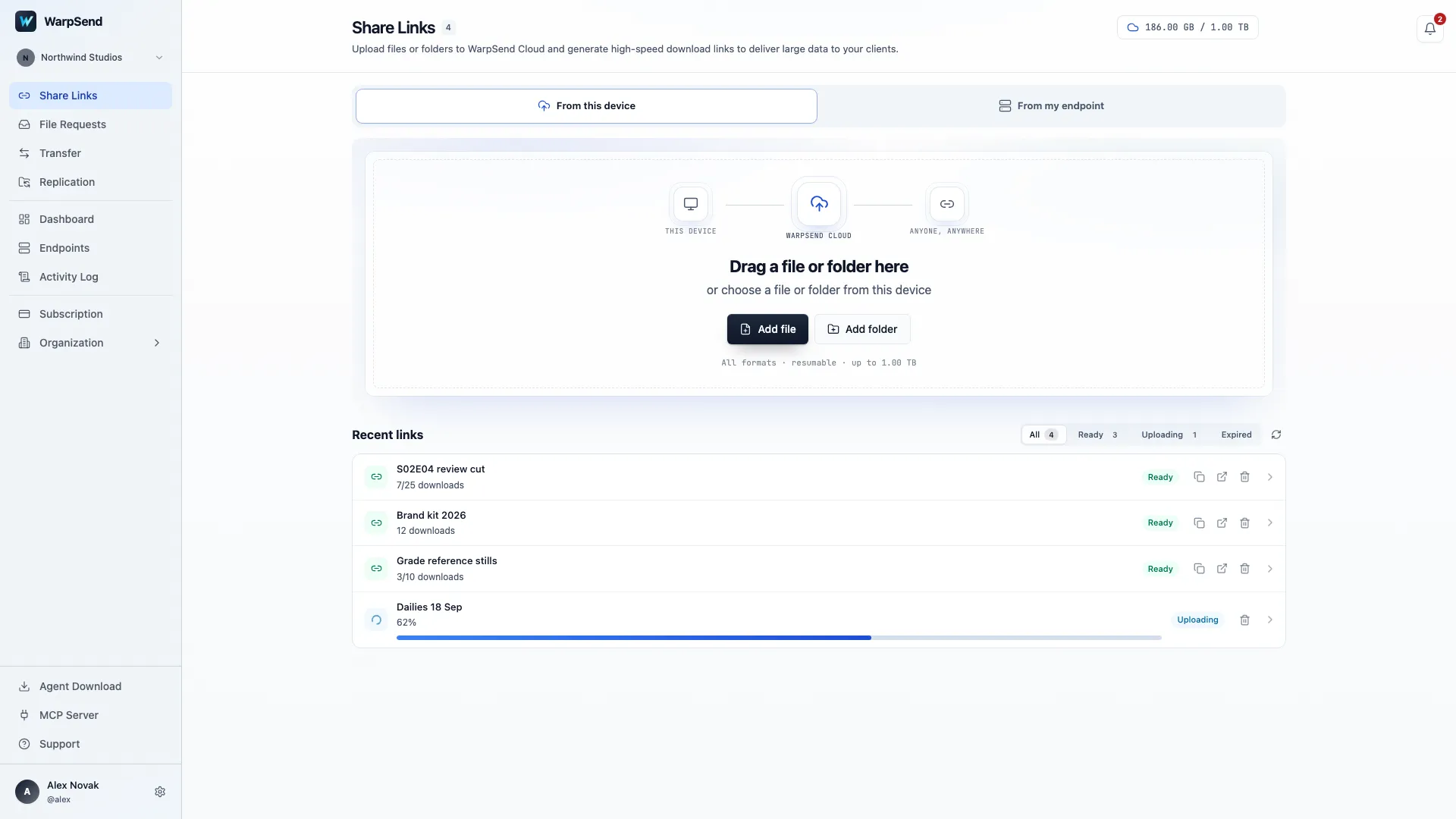
WarpSend Share Links view. English interface with Northwind Studios demo data; values are illustrative.
Option 5: Apply bandwidth and workload controls
If production writes and external delivery must overlap, decide which job has priority. Use approved DSM, router, application, or transfer-tool controls to limit one workload and protect the other.
A stable 200Mbps delivery can be better than an uncapped transfer that repeatedly starves the render or collapses under queueing. Monitor the result; a configured limit is only useful if it produces predictable behavior.
Synology documents several control layers: per-user and per-group speed limits, DSM traffic control, and package-specific settings. Support is not universal. Its matrix notes, for example, that File Station user traffic can be limited but File Station shared links do not expose the same listed control methods, and that behavior through QuickConnect can differ. See How to limit DSM service traffic.
If the active delivery path cannot be limited in DSM, use the router or transfer product only when it can classify that traffic reliably. Re-run the measurement matrix after adding a cap; otherwise the rule may simply move the bottleneck or remain unused.
A decision tree
- The file is still being rendered: do not distribute it as final; wait or use a snapshot/versioned export workflow.
- One recipient can install a client: use a resumable direct transfer.
- Several recipients need the finished file: stage it once and share a link.
- Local reads are slow: fix storage or background workload first.
- Local reads are fast but external delivery is slow: investigate the uplink, route, and protocol.
- Both jobs must run together: measure, prioritize, and cap workloads deliberately.
The goal is not to make every component run at its maximum at once. It is to make production and delivery predictable without misdiagnosing a shared-resource bottleneck as a file-sharing bug.
If the specific failure is a browser download that stops or leaves a broken ZIP, use the QuickConnect large-file download tests to compare packaging, the recipient disk and the remote route. If the recurring job is keeping a second site’s NAS current rather than delivering one file, compare the Synology replication methods.
Synology documentation and the workload model were checked on August 6, 2026. Resource Monitor fields and traffic-control support differ by DSM version and package, so verify the exact sharing path before promising a bandwidth policy.
Frequently asked questions
Why do Synology file-sharing downloads slow down while other files are being written?
The workloads can compete for disk I/O, filesystem metadata, CPU, memory, and the NAS site’s upload capacity. Monitor disk utilization and network flow during the slowdown to identify whether the bottleneck is storage, network, or both.
Will a share-link service make the render NAS faster?
No. Uploading the finished deliverable still consumes source disk and upstream bandwidth. After staging completes, however, recipient downloads can be served without repeatedly reading from the busy NAS.
Should I use direct transfer or a cloud share link?
Use direct transfer for a paired endpoint and a single delivery path. Use a staged share link when recipients should use a browser, multiple people need the same file, or the NAS should be allowed to go offline after one completed upload.
Can DSM bandwidth limits protect a render workload?
Sometimes, but support differs by package, service, and access path. Synology documents user, group, traffic-control, and package-specific limits, and notes that File Station shared links do not expose all of those controls. Verify the exact delivery service and monitor whether the configured limit changes the real bottleneck.