How to Move Files From Google Drive or a DAS to Synology NAS
Plan a safe move from Google Drive and direct-attached storage to Synology NAS with exports, staging space, validation, delta passes, sync, and backup.
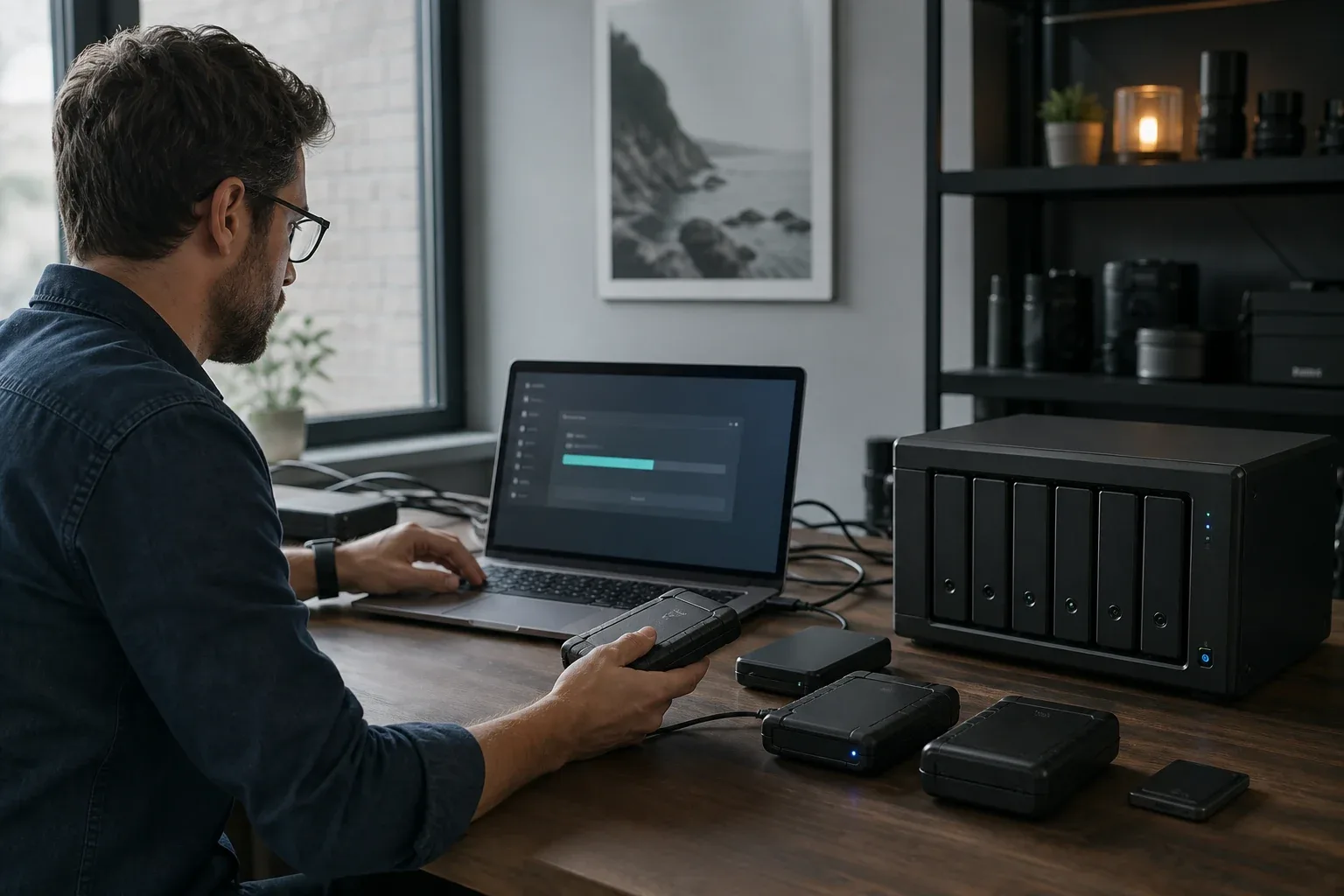
A studio moving its archive from Google Drive and direct-attached storage to a Synology NAS has two kinds of material to reconcile. Local media can be copied as files; cloud documents, shared items, and revision history may require exports or a separate access plan.
Start by identifying the authoritative version of each project. Then choose a way to retrieve the Google data, move the local archive, and reconcile changes before making the NAS the working copy.
Inventory the sources first
Record:
- Google Drive used capacity;
- shared drives and externally owned files;
- Google Docs, Sheets, and Slides that are not ordinary local files;
- folders already synchronized to a computer;
- DAS capacity, filesystem, and health;
- duplicate folders across Drive and DAS;
- permissions and sharing links that must be recreated; and
- active project folders that continue changing.
If the same project exists in Drive, a desktop folder, and the DAS, record which copy is current before importing them. Keep conflicting versions separate until someone responsible for the project reviews them.
Option 1: Pull Google Drive into Synology Cloud Sync
Synology Cloud Sync supports Google Drive and Google Shared Drive connections. For a migration or retained NAS copy, use Download remote changes only rather than bidirectional sync. Synology also provides a Don’t remove files in the destination folder when they are removed in the source folder option and can convert Google online documents to Microsoft Office or JPEG formats for an offline copy.
Read Synology’s Google Drive backup workflow and the current Cloud Sync settings before starting.
Important limits in Synology’s documentation include:
- Google Drive Shared with me, Computers, and Shortcuts are not covered by the referenced backup workflow;
- cloud-native files require an export format if they must be usable offline;
- a changed large file may be downloaded again in full rather than transferred as only changed blocks;
- provider throttling can make a third-party sync slower than the provider’s desktop client; and
- advanced consistency checking can compare hashes only where the cloud provider exposes the required attributes.
Cloud Sync is attractive when the NAS can stay online for the complete pull and you want a monitored task without staging all archives on a desktop. It is still a synchronization workflow, not proof of a versioned backup. Preserve the source until inventory, formats, and restore behavior are validated.
Option 2: Export with Google Takeout
Google Takeout can create an archive of selected Google products. Google documents that downloading data does not delete it from Google’s servers, and that recent changes made between the request and archive creation may not be included.
Review How to download your Google data before requesting the export.
Takeout lets you select products, archive format, delivery method, and maximum archive size. Large exports may arrive as multiple ZIP or TGZ parts. Plan enough staging space for:
- the downloaded archives;
- the extracted contents; and
- the final NAS copy.
If the desktop has a small SSD, use a sufficiently large trusted external volume for staging rather than attempting to hold archives and extracted files on the internal disk at the same time.
Google currently documents a maximum selectable archive part size of 50GB, archives that expire in about seven days, and a limit of five downloads per archive. It also warns that changes made between the export request and archive creation may be absent. Treat the Takeout timestamp as the beginning of the migration, not the final cutover state.
Option 3: Use Google’s third-party data transfer where available
Google also documents a mechanism that lets supported third-party services request a copy of selected account data for one-time or time-limited recurring transfer. Availability depends on region, account type, administrator policy, and whether the destination implements the feature.
Google is explicit that this creates a copy, not a live sync, and does not delete the original. See Share a copy of your data with a third party.
Do not assume a Synology destination or a specific app supports this path until the destination documents it.
Option 4: Copy from a synchronized desktop folder
If Google Drive for desktop already exposes the complete required files locally, you can copy those ordinary files to the NAS. Confirm that content is actually downloaded rather than represented by online-only placeholders.
This path may not preserve:
- Google sharing links and permissions;
- comments and revision history;
- every cloud-native document behavior; or
- files owned by other accounts that were never downloaded.
Compare the local inventory with the cloud inventory before treating the local folder as complete.
Move the DAS to Synology separately
For direct-attached storage, use a wired path and avoid Wi-Fi for the bulk phase when possible.
Common options include:
- attach the DAS to a desktop and copy over SMB/NFS;
- attach a supported USB device directly to the NAS and use File Station or USB Copy;
- use a direct file-transfer endpoint on the desktop and NAS; or
- configure a recurring sync for active folders.
WarpDirect can move ordinary folders from a supported desktop endpoint to a supported Synology NAS with resume. WarpSync can keep selected folders aligned afterward. Neither option fetches Google Drive directly, preserves Google metadata, or replaces a backup. The Synology NAS file transfer page shows the endpoint setup and how a completed copy is checked.
Synology’s USB Copy documentation lists supported filesystem conditions, conflict policies, filters, scheduling, and optional auto-eject behavior. Confirm that the specific NAS model recognizes the DAS filesystem and capacity before assuming a direct USB path will work. If the DAS is healthy but not supported by DSM, leave it attached to the computer and copy over a stable wired LAN.
A two-pass migration plan
Pass 1: Bulk import
- Export or fully download the Google data.
- Extract archives to a staging volume.
- Copy the stable DAS archive.
- Import both into clearly separated staging folders on the NAS.
- Compare file counts and total bytes.
- Review duplicates before merging folder trees.
Pass 2: Final delta
- Choose a cutoff time.
- Stop or record new edits.
- Export or synchronize the latest changes.
- Copy only changed DAS files.
- Reconcile conflicts.
- Validate applications and users.
- Keep the original sources until backup and restore are tested.
The delta pass controls downtime. A month-long bulk import can still produce a short cutover if changes are tracked.
Handle cloud-native files deliberately
Google Docs, Sheets, and Slides may export to selected portable formats rather than remain identical cloud objects. Test representative documents, especially those with comments, links, macros, complex formatting, or collaboration history.
If a document still needs collaborative editing, leaving it in Google Drive may be better than forcing it into a static archive. A migration does not have to move every file class.
Reconcile Drive, desktop, and DAS duplicates
Do not merge three trees based only on folder names. Build a reconciliation report containing relative path, size, modification time, and a hash for high-value or ambiguous files.
Classify conflicts:
- same path and same content: keep one authoritative copy;
- same path and different content: preserve both with explicit source and timestamp labels;
- cloud-native document versus exported Office file: retain the cloud object until the exported format is accepted;
- online-only placeholder: force a real download before counting it as migrated; and
- externally owned or shared item: record the owner and sharing requirement because a local byte copy will not recreate access control.
This step prevents a successful transfer from silently replacing a newer DAS edit with an older Drive copy.
Validate before deleting anything
At minimum:
- compare expected folders, files, and bytes;
- open representative documents, photos, videos, and project files;
- verify timestamps where they matter;
- hash important archives;
- test NAS permissions from a normal user account;
- run the intended desktop sync workflow; and
- perform an independent backup and restore test.
Do not delete Google Drive or wipe the DAS merely because the NAS shows the expected used capacity.
Choose the ongoing model
After migration, decide whether the NAS is:
- the primary working store;
- an archive;
- a sync peer for active projects; or
- a backup target.
Those roles require different retention and deletion behavior. If files must exist on both Mac/DAS and NAS, read Synology NAS Replication: Choose the Right Sync Method. If the NAS becomes primary, add a separate backup rather than relying on the old cloud copy indefinitely.
Google and Synology documentation were checked on August 6, 2026. Export limits, Cloud Sync provider support, and cloud-native conversion behavior can change; test a representative folder before starting the full migration.
Frequently asked questions
Can Synology NAS import Google Drive data directly?
Several workflows are possible, including cloud synchronization tools and exported archives, but capabilities and metadata differ. Google Takeout creates a copy for download or transfer; it does not automatically create a permanent two-way migration. Verify file formats, recent changes, permissions, and available staging space.
Can WarpSync pull files directly from Google Drive?
No direct Google Drive import is assumed in this guide. Export or download the cloud data to a supported local or server endpoint first. WarpSync can then move ordinary folders from that endpoint or an attached DAS to a supported Synology NAS.
Should the Synology copy replace my backup?
No. A synchronized or migrated copy is not automatically a versioned backup. Keep an independent backup and test restore before deleting the Google Drive or DAS source.
Should I use Synology Cloud Sync or Google Takeout?
Use Cloud Sync when the NAS can pull data directly over time and its provider limits cover the required folders. Use Takeout when you need a portable export archive or Cloud Sync does not cover the data class. Both require a final delta and validation of cloud-native formats, ownership, and recent changes.