Synology Drive ShareSync Slow? Fix NAS Sync Speed
Diagnose a slow Synology Drive ShareSync job: upload bandwidth, connection path, small-file overhead, indexing, disks, CPU, filters and the first sync.
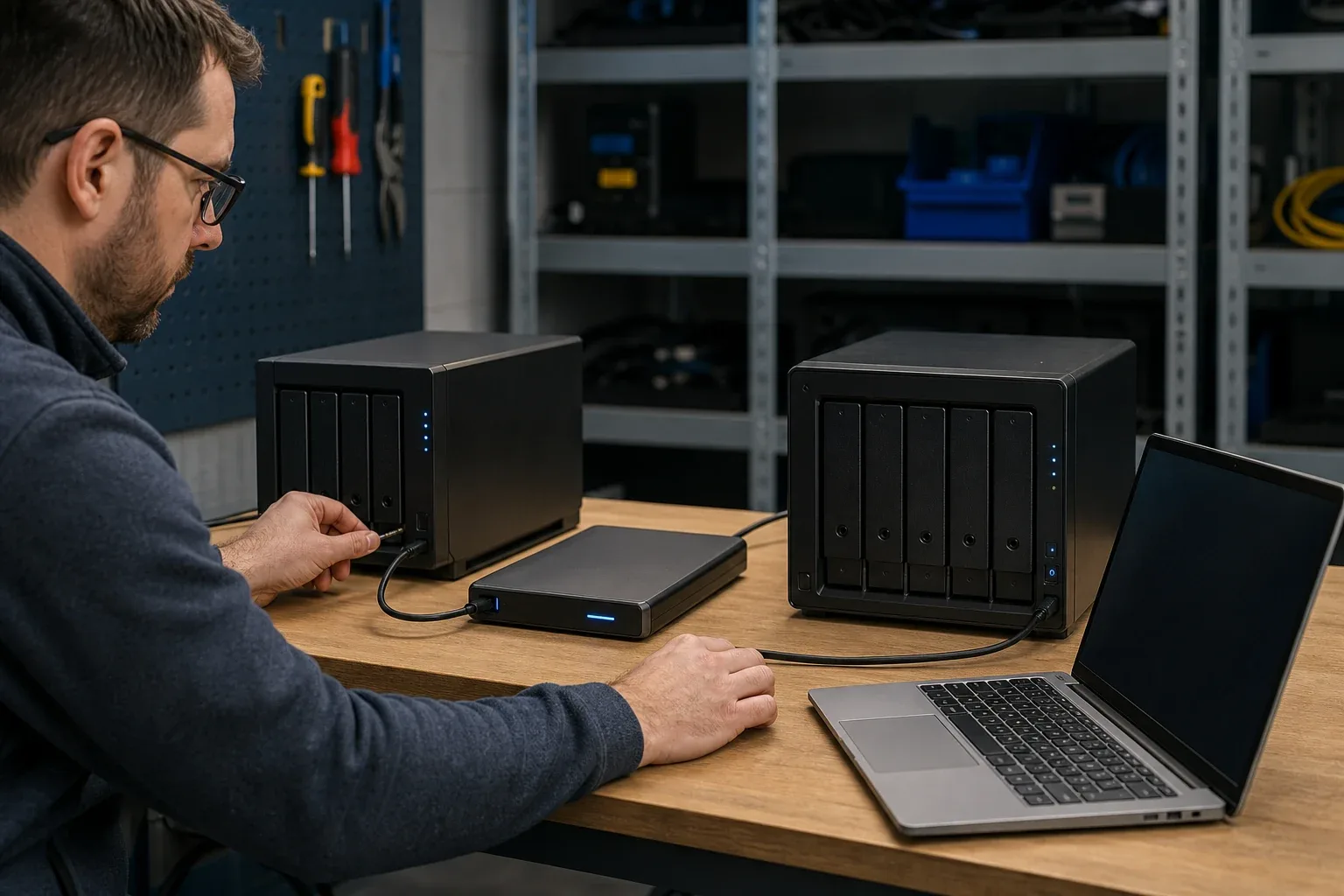
When Synology Drive ShareSync runs slowly between offices, save the task logs and watch both NAS devices before restarting it. A low network rate can mean the service is scanning and comparing files, waiting on storage, or using all the sending site’s upload capacity.
If specific files never arrive, use the ShareSync missing-file investigation before treating the problem as low throughput. ShareSync does not display unsynced events, so a clear log alone does not establish that every expected file was included.
Start with a large-file test, then compare the real folder. The results help separate WAN throughput from the file and database work of synchronization. Confirm the task follows Synology’s ShareSync setup guide, including Drive Server and the required Team Folders.
How to speed up Synology NAS transfer safely
A controlled test preserves the information needed to improve the existing job. Record its direction, connection method, elapsed time, and failed items before changing settings. Recreating a task too early can replace that evidence with another full scan.
To speed up Synology NAS transfer, follow the layer that the measurements identify. A saturated disk calls for storage or workload changes; a full site uplink calls for traffic scheduling or more upstream capacity. The tests below distinguish those cases.
Diagnose the bottleneck in 15 minutes
Do not change five settings at once. Capture these four observations first:
| Test | What to record | What the result usually means |
|---|---|---|
| One large file | Sustained MB/s after the first minute | Approximates the useful end-to-end data path |
| 10,000+ small files | Files per minute and network utilization | Low network use points to metadata, indexing, or disk work |
| Sending-site speed test | Real upload in Mb/s | Sets the WAN ceiling for traffic leaving that site |
| DSM Resource Monitor | CPU, disk utilization, and network on both NAS devices | Shows which endpoint is saturated while the job is slow |
As a quick conversion, divide megabits per second by eight to estimate the theoretical megabytes per second before protocol and encryption overhead. A 100 Mb/s upload therefore cannot deliver 100 MB/s across sites.
Synology’s Resource Monitor documentation confirms that DSM can show CPU, memory, disk utilization, and network flow in real time or from saved history. Open it on both NAS devices during the same test.
1. Establish the real network ceiling
For NAS devices in different locations, the lower of the source upload, destination download, and usable path capacity limits throughput. Test from a wired client at each site when possible. Wi-Fi measurements can hide a healthy WAN behind a local radio problem.
Record:
- Sending-site upload and receiving-site download
- Whether another backup, camera upload, or cloud sync job is active
- The time of day and whether the slowdown is repeatable
- ShareSync’s sustained rate for one multi-gigabyte file
If the large-file rate is already close to the sending upload ceiling, ShareSync is not leaving much bandwidth unused. The improvement must come from a faster site uplink, traffic scheduling, or reducing competing traffic.
2. Identify the configured connection path
In the ShareSync task, note whether the remote NAS was entered with an IP address, hostname, or QuickConnect ID. Synology documents these connection options. Its setup guide also notes that a direct connection to a remote network requires the relevant remote access configuration, including TCP port 6690 for the documented port-forwarding workflow.
Do not open an inbound port merely to run a speed test unless your security owner approves it. Instead:
- Record the current connection method and certificate state.
- Run the same large-file test twice at a quiet time.
- Compare the result with a separately approved VPN or direct route if your organization already has one.
- Keep the faster configuration only if it also meets your access-control and certificate requirements.
This separates a path problem from a Drive database or storage problem without weakening the NAS perimeter by accident.
3. Compare one large file with many small files
One 50 GB file and 500,000 files totaling 50 GB are not equivalent workloads. Small files add directory traversal, metadata comparison, permission checks, file creation, close operations, and indexing. The network graph may look nearly idle while one NAS is busy processing file events.
Use two controlled folders:
- Large-file set: one or two files totaling at least several gigabytes
- Small-file set: a representative directory containing many small files
If the large-file set is fast and the small-file set is slow, stop tuning the WAN. Check CPU, disk utilization, Drive indexing, and competing package activity. Bundling files into an archive can help a one-time transfer, but it changes the destination format and is not a substitute for ongoing file synchronization.
4. Check both NAS devices, not only the source
While the test runs, look for:
- Sustained high disk utilization on the source or destination volume
- CPU saturation on a lower-powered NAS
- RAID rebuild, data scrubbing, snapshot, antivirus, thumbnail, media indexing, or backup work
- A nearly full volume or storage-pool warning
- Network flow that is high on one interface but not the one expected for the task
Pause only jobs that are safe and authorized to pause, then rerun the identical test. If performance improves, schedule the competing workload outside the sync window instead of rebuilding ShareSync.
5. Read ShareSync logs and verify the task rules
The Synology Drive ShareSync help page documents the sync log, file filters, direction rules, conflict handling, and advanced consistency check. Review these before changing the database.
Look for:
- Repeated retries or upload/download failures
- Files excluded by size or type filters
- Unsupported names or paths
- Read-only permissions that force one-way behavior
- Locked files or files in use
- Repeated conflict copies
- Advanced consistency checks that add work to a very large tree
Synology also provides a current files-not-syncing checklist covering logs, filters, unsupported paths, permissions, locks, and indexing. A task that appears slow can actually be retrying or skipping the same subset repeatedly.
6. Separate first-sync work from steady-state sync
The initial job must enumerate and compare the complete folder tree before steady-state changes become small. On a large dataset, that scan can dominate elapsed time even when very few bytes cross the WAN.
Before trying to pre-copy the data manually, decide whether ShareSync will recognize the seeded files exactly as expected. A mismatched seed can cause another full comparison, duplicate conflict files, or retransfers. Use the ShareSync initial-seeding runbook to define the baseline, pause writers, verify the copy, and start synchronization deliberately.
For an ordinary one-time copy rather than ongoing Drive behavior, the fastest Synology NAS-to-NAS transfer section of the replication guide compares the simpler alternatives.
Fixes in the right order
Apply one change, repeat the same test, and keep a short result log.
- Update DSM and Synology Drive Server to supported compatible versions.
- Remove or reschedule competing disk- and CPU-heavy jobs.
- Correct filters, permissions, unsupported paths, and repeated errors.
- Test a security-approved route that avoids an unintended network bottleneck.
- Reduce the first-sync scope or seed it with a documented, verified procedure.
- If small-file processing remains the limit, choose a transfer workflow designed for the actual requirement rather than continuing to tune bandwidth.
Avoid deleting the ShareSync database, unlinking the task, or starting over until you have exported the useful evidence and understand what the rebuild will rescan.
When ShareSync is still the right tool
Keep Synology Drive ShareSync when:
- Both endpoints are supported Synology NAS devices
- The folders belong in Synology Drive Team Folder workflows
- Continuous Drive synchronization and its permission behavior are required
- The measured rate already matches the available network or NAS capacity
ShareSync is not a versioned backup. If the goal is restore points, ransomware rollback, DSM configuration recovery, or snapshot replication, use the appropriate Synology protection tool. The Synology cross-site replication guide maps those recovery requirements to the native options.
When WarpSend is a better fit
Consider WarpSync when the requirement is ordinary file-level movement or synchronization and the pain is cross-site setup, interrupted transfers, or mixed endpoint types. WarpSend installs on supported Synology NAS devices and connects them with desktops and servers; it uses a direct encrypted route when possible and an encrypted relay when a direct route is unavailable. Users do not configure inbound port forwarding for the WarpSend workflow.
WarpSync does not reproduce Synology Drive versions, Btrfs snapshots, or Hyper Backup repositories. Keep those native systems when their recovery semantics are the reason you chose them.
See the Synology NAS transfer and sync solution for the complete workflow, or create a free WarpSend account to test the same representative large-file and small-file datasets before changing production sync.
Frequently asked questions
Why is Synology Drive ShareSync so slow between two NAS devices?
The common limits are the sending site’s upload speed, the network path between sites, many small files, Synology Drive indexing or database work, disk utilization, CPU pressure, and the first full comparison. Measure one large-file test and watch Resource Monitor on both NAS devices before changing the task.
Does QuickConnect make Synology Drive ShareSync slower?
A QuickConnect ID and a direct IP or hostname are different connection configurations, but you should not assume the identifier alone proves which component is slow. Record the configured path, compare a controlled large-file transfer, and check both NAS devices and the site upload ceiling before changing firewall settings.
Why are small files slower to sync than one large file?
Every file adds metadata lookup, open and close operations, permission checks, indexing, and protocol work. A folder containing hundreds of thousands of small files can therefore use far less network bandwidth than a single large file even when the total byte count is the same.
Should I delete the ShareSync database and start again?
Not as a first step. Save the sync logs and task settings, confirm filters and permissions, measure resource use, and understand the first-sync state first. Rebuilding a database can trigger another full scan and removes useful diagnostic context.
When should I use WarpSync instead of Drive ShareSync?
Keep Drive ShareSync when you need Synology Drive Team Folder behavior. Consider WarpSync when the goal is fast, resumable file-level sync between supported NAS, desktop, and server endpoints with simpler cross-site connectivity. Neither file sync method replaces snapshots or a versioned backup.