Synology NAS Replication: Snapshot, Backup, Sync, or Transfer?
Choose a Synology-to-Synology replication, sync, transfer or migration method by recovery goal, destination behavior, network and first-copy time.
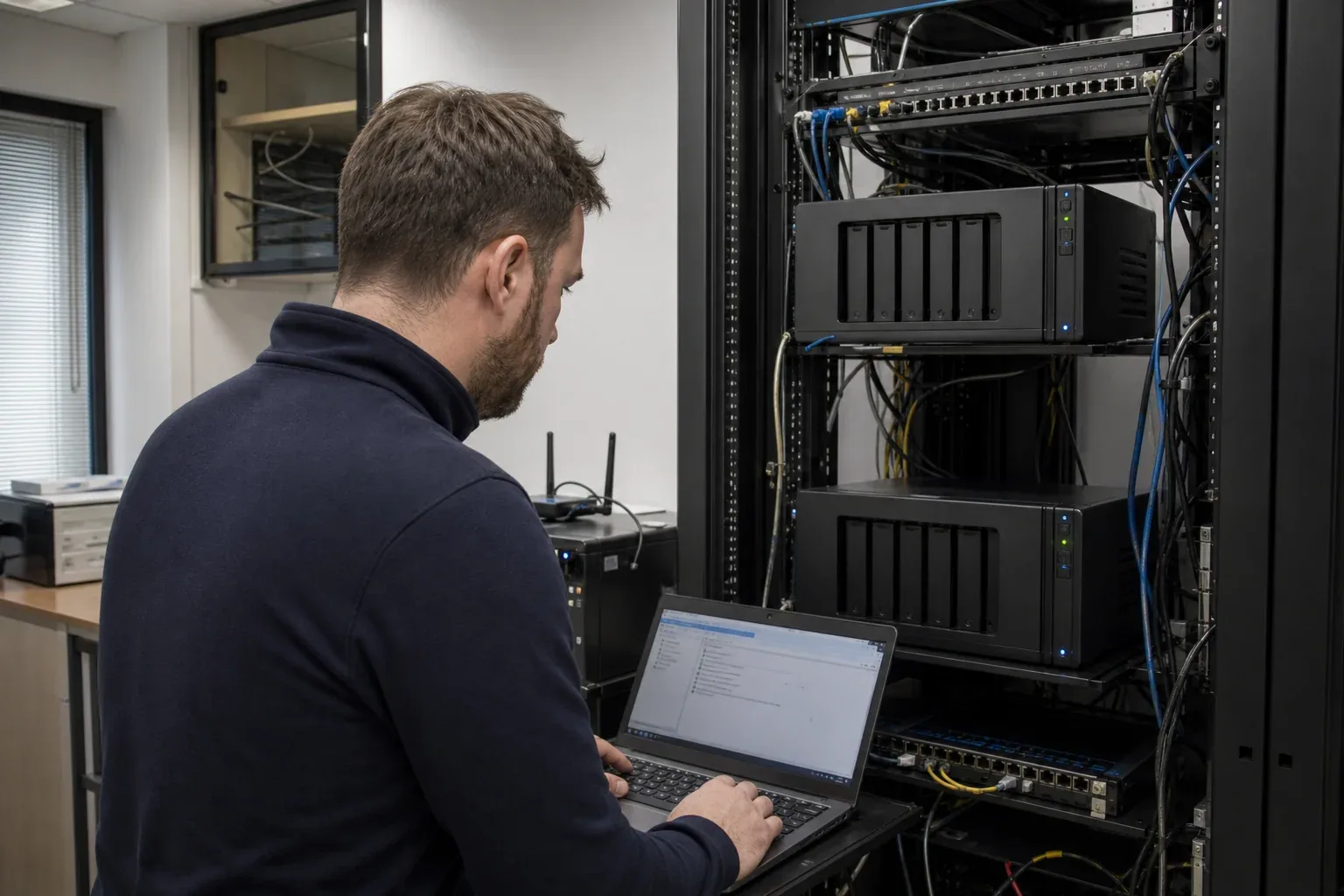
A second Synology NAS can hold a recoverable backup, a replica for failover, or a working folder that another office edits. Those destinations may look similar in a file browser, but they behave differently when someone changes or deletes a file.
Start with what the remote copy must do. This guide compares Synology’s backup, replication, and sync tools, then covers the first transfer, migration, and performance checks. WarpSync is included for file-level automation across supported NAS, desktop, and server endpoints.
Cross-site sync versus file transfer between offices
With Synology cross site sync, changes continue after the initial copy, so deletion and conflict rules need an owner. A Synology file transfer between offices may instead be a single delivery or scheduled batch, with each side managing its own copy afterward.
A backup adds a different requirement: recovering an earlier state. Decide whether the destination needs that history, a current readable mirror, or a writable workspace before selecting the service below.
Synology data movement options at a glance
| Method | Best fit | Direction | Destination format | Key requirement |
|---|---|---|---|---|
| Snapshot Replication | Fast recovery, snapshots, failover | Source to replica | Synology snapshot replica | Supported Btrfs storage; port 5566 for shared folders |
| Hyper Backup | Versioned backup of files, packages, and configuration | Source to backup | Hyper Backup repository | Hyper Backup Vault on a remote Synology destination |
| Shared Folder Sync | Readable one-way folder mirror | One-way | Ordinary shared folder | rsync service; port 22 encrypted or 873 unencrypted |
| Drive ShareSync | Collaboration across NAS devices | One-way or two-way | Ordinary team folders | Synology Drive Server and enabled Team Folders |
| Presto File Server | Accelerated WAN file transfer, distribution, and collection | Upload, download, or scheduled transfer tasks | Ordinary files and folders | Presto package and bandwidth license; TCP/UDP ports 3360 and 3361 |
| WarpSync | Automated file movement across supported endpoint types | One-way or two-way | Ordinary files and folders | WarpSend endpoints and a configured sync job |
Backup, replication, transfer, and sync solve different problems. A live mirror can copy an unwanted deletion. A versioned backup can restore an earlier state but is not a writable collaboration folder. A snapshot replica can support recovery operations but requires compatible storage. An accelerated transfer product can move files quickly without creating snapshot recovery points.
1. Snapshot Replication for recovery and failover
Snapshot Replication protects shared folders and supported LUNs by taking point-in-time snapshots and replicating them to another Synology NAS or volume. It is the strongest fit when recovery time and a controlled failover path matter.
For shared folders:
- the protected folder must use supported Btrfs storage;
- port 5566 carries replication data;
- separate routers require a reachable route or port-forwarding design;
- the destination stores a replica, not a normal two-way collaboration folder; and
- recovery operations include switchover, failover, re-protect, and test failover where supported.
Synology also supports sending the first copy with a storage device. Read the step-by-step guide to seed Snapshot Replication with a USB drive when the initial dataset is too large for the available WAN window.
Primary documentation: Snapshot Replication overview, remote replication setup, and recovery operations.
2. Hyper Backup for versioned backup and restore
Hyper Backup is a backup system, not a live shared-folder mirror. It can include shared folders, supported packages, and system configurations, retain multiple versions, and use block-level incremental backup after the first version.
For a remote Synology destination, install Hyper Backup Vault on the receiving NAS. The destination stores a backup repository that you browse or restore with Hyper Backup tools; it is not an ordinary writable copy of the source tree.
Choose Hyper Backup when:
- you need multiple restore points;
- application or DSM configuration is in scope;
- the destination uses ext4 or Btrfs and Snapshot Replication is not the right fit; or
- restore workflow matters more than having a live readable mirror.
Primary documentation: Back up your Synology NAS and Hyper Backup Vault.
3. Shared Folder Sync for a one-way readable copy
Shared Folder Sync copies selected shared folders from one Synology NAS to another. The first run is a full sync; later runs transfer modified data. Files deleted at the source are also removed at the destination.
Synology documents internet operation using an external IP address or FQDN. The destination must enable rsync. Default connectivity is:
- port 22 when SSH transfer encryption is enabled; or
- port 873 for an unencrypted rsync transfer.
Use the encrypted option and apply your organization’s firewall, allowlist, VPN, and credential policy. Synology also notes that Shared Folder Sync does not carry every permission type and that destination-side edits can be overwritten.
Primary documentation: Shared Folder Sync.
If Shared Folder Sync or another rsync-based job misses its transfer window, use the measured sequence in Rsync Slow Over WAN? before changing firewall, checksum, compression, or concurrency settings.
4. Drive ShareSync for writable folders at both sites
Synology Drive ShareSync is designed to sync data across multiple Synology NAS devices. Install Synology Drive Server on each NAS, enable the remote shared folders as Team Folders, connect the systems, and select the folders and sync direction.
This is the better native option when:
- both sites need a writable copy;
- file-level conflict handling is required;
- selective sync rules are useful; or
- a QuickConnect ID or proxy-based connection is preferable to the Shared Folder Sync workflow.
Permissions matter: Synology notes that insufficient write permission can turn an intended two-way task into one-way synchronization. Also check model-specific limits for the number of files that can be synced.
Primary documentation: Synology Drive ShareSync.
5. Presto File Server for Synology-native WAN transfer
Synology Presto File Server uses Synology Internet Transfer Accelerator (SITA) for rapid file transfer between computers and Synology NAS, or between multiple Synology NAS servers. Synology positions it for high-latency WAN transfers, centralized policy and traffic control, detailed logs, scheduled automation, and multi-server distribution or collection.
The deployment has several parts:
- install and license Presto File Server on each participating Synology NAS;
- install Synology Presto Client or Presto Automator on participating computers;
- open TCP/UDP ports 3360 and 3361, including corresponding port-forwarding rules when the network requires them; and
- use Site Express for scheduled distributing or collecting tasks between multiple Presto servers.
Synology licenses Presto by maximum one-way bandwidth. As checked on August 3, 2026, its US price page lists perpetual licenses of $399 for 20 Mbps, $949 for 50 Mbps, $1,799 for 100 Mbps, $4,799 for 300 Mbps, and $6,999 for 500 Mbps. The licenses include three years of upgrade service and technical support, allow unlimited desktop clients, and can be accumulated on one NAS. A one-time 30-day trial is available for each eligible NAS. Prices, model support, and DSM compatibility can change.
Primary documentation: Presto File Server, Presto Client, and Presto licensing.
Presto File Server vs WarpSync
| Dimension | Synology Presto File Server | WarpSync |
|---|---|---|
| Primary workflow | Accelerated upload, download, distribution, and collection | Managed one-way or two-way file automation |
| Endpoint scope | Synology NAS servers plus Presto desktop clients | Supported Synology NAS, Windows, macOS, and Linux endpoints |
| Administration | Presto Server, Client or Automator, Site Express, and per-NAS licenses | Lightweight agents with endpoints, jobs, and history in one interface |
| Network setup | TCP/UDP 3360 and 3361; port forwarding may be required | Users do not configure inbound port forwarding; direct route or managed shuttle (Shuttle fallback on transfers requires a paid speed tier) |
| Automation | Scheduled Site Express and Presto Automator tasks; CLI available | Centrally configured one-way and two-way sync jobs |
| Public pricing signal | Perpetual bandwidth licenses from $399 for 20 Mbps to $6,999 for 500 Mbps | Free tier; separate UDP endpoint speed tiers; WarpShare sharing and collection billed by upload volume; repeat downloads add no extra charge |
| Best fit | Synology-native estate that wants dedicated accelerated transfer and fixed bandwidth licensing | Teams prioritizing simpler setup and one operating model across NAS, desktop, and server endpoints |
Choose Presto when Synology-native administration, Site Express topology, and a perpetual bandwidth license fit the estate. Choose WarpSync when deployment simplicity, mixed endpoint types, central multi-endpoint control, and one-way or two-way sync are the leading requirements. Run both on the real route and file set; neither product replaces Snapshot Replication recovery or Hyper Backup versioning.
For the full architecture, port, licensing, and workflow breakdown, read the dedicated Synology Presto File Server vs WarpSend comparison.
6. WarpSync for file-level automation across endpoint types
WarpSync is not a Synology snapshot or DSM configuration-backup system. It is an automated file workflow that supports one-way and two-way sync, resume after interruption, and ordinary files and folders across supported NAS, desktop, and server endpoints.
Consider it when the requirement is continuous file movement rather than Synology-native snapshot failover or a Hyper Backup repository. Review the current WarpSync product definition and test the actual source, destination, file pattern, and route before replacing an established workflow. The NAS & IT solutions overview walks the full install-to-verified-copy workflow across sites.
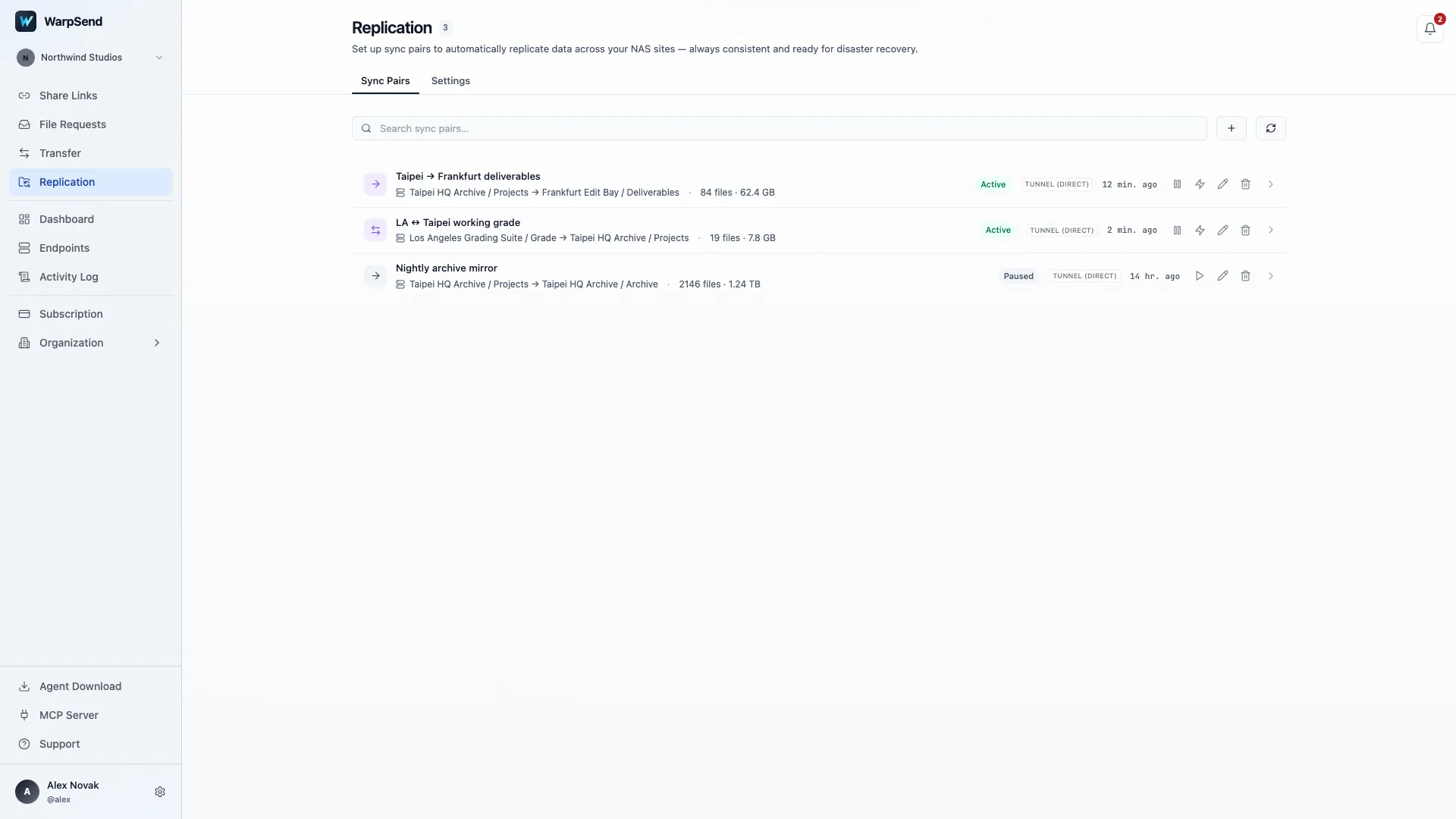
WarpSend Replication view. English interface with Northwind Studios demo data; values are illustrative.
Fastest way to transfer files between two Synology NAS devices
The fastest way to transfer files between two Synology NAS devices depends on where they are. On the same wired LAN, start with a NAS-initiated File Station copy from a mounted remote folder. Between different locations, use one of the Synology sync or replication tools above when you need its recovery behavior, or a resumable endpoint-to-endpoint transfer when you need to move ordinary files quickly without routing them through a laptop.
Copy, sync, backup, or migration?
Decide what the job is before choosing the tool, because these words produce very different destinations:
- A copy moves selected files once.
- A sync keeps folders aligned after the first transfer.
- A backup preserves one or more restore points.
- A migration may include packages, settings, permissions, and DSM configuration.
If you only need selected media folders on the second NAS, a full Migration Assistant job is too broad. If you need to recover deleted files next month, a live mirror is not enough.
Plan Synology NAS file transfer over internet connections
For transfers over the internet, confirm whether the receiving NAS needs a one-time package or ongoing updates. A scheduled copy can keep delivering new material without creating a two-way workspace.
For fast file transfer between Synology NAS devices, compare completion time after confirming that each tool provides the required destination behavior:
| Question | Remote-folder copy | Shared Folder Sync | Drive ShareSync | Direct file transfer |
|---|---|---|---|---|
| Can I select individual folders? | Yes | Shared-folder scope | Team Folder and subfolder rules | Selected file or folder scope |
| Does it keep running automatically? | No | Scheduled or manual sync | Continuous sync task | One-time transfer or configured recurring job |
| Can source deletions reach the destination? | Only if you delete them manually | Yes, by mirror behavior | Depends on sync mode and conflict rules | Only if the configured workflow includes deletion behavior |
| Does it preserve Synology Drive versions? | No | No | It participates in Drive sync, but is not a migration of all historical versions | No |
| Is it a versioned backup? | No | No | No | No |
Mount the other NAS in File Station for a one-time LAN copy
File Station can mount a remote CIFS or NFS shared folder on supported models, so either NAS can browse and copy files without a laptop in the data path. Synology documents the workflow under Mount Remote Folders. It fits a one-time, selective copy between NAS devices on the same trusted LAN or private network when you do not need DSM packages or a versioned backup. The copy is still limited by the source disk, destination disk, link, protocol overhead, and file pattern: a mounted folder does not turn 1GbE into 10GbE, and it does not make thousands of tiny files behave like one large file.
Shared Folder Sync and Drive ShareSync are covered in sections 3 and 4 above; they are the right choice when you want a readable mirror or a collaborative folder rather than a single copy.
A direct file-transfer endpoint on each NAS
When the goal is simply to move ordinary files between two endpoints, resume after interruptions, and keep a job history, install a transfer endpoint on both NAS devices. WarpDirect does this for supported Synology NAS endpoints: select the source and destination and run the transfer without keeping a laptop in the path; WarpSync is the recurring-job version. It does not create DSM recovery points or migrate package state, so use it only when file-level movement is the requirement.
NAS-to-NAS transfer over internet connections
Two NAS devices on different networks need a reachable path, but that does not mean publishing SMB or unencrypted rsync to the whole internet. Use one of three designs:
- Site-to-site VPN or private overlay: the NAS devices use private addresses and the file service stays inside the trusted route.
- Product-documented internet workflow: open only the ports and authentication the chosen Synology service requires, with firewall allowlists where practical.
- Endpoint transfer agent: each NAS makes outbound connections and the transfer system negotiates the route, avoiding a user-managed inbound file-service port.
If the sites already share a private overlay such as Tailscale and copies are slower than expected, work through the Tailscale NAS transfer diagnosis before replacing the route.
Synology’s current port list identifies TCP 22/873 for rsync and Shared Folder Sync, 6281 for Hyper Backup Vault on DSM 7, and 5566 for Snapshot Replication shared-folder data. Treat the Synology service-port list as a starting point, verify the exact DSM version and package, and do not open every listed port just in case.
A person downloading from the NAS through a browser is a different path from NAS-to-NAS replication. If a large QuickConnect download stops or arrives damaged, use the QuickConnect large-file download checks.
Plan Synology NAS transfer over WAN links
On the same wired LAN, Synology-native tools, SMB, NFS, rsync, or direct file transfer may all reach the practical disk or NIC ceiling. Test before assuming an accelerator is necessary: measure source read speed, measure destination write speed, run a network throughput test in both directions, copy one large file, then copy a representative folder with the real file count. Across the internet, add the slower site’s upload capacity, round-trip time, packet loss, NAT, and relay path to the model; the long-distance transfer guide has a reproducible sequence. If the NAS is also serving editors or running backups during the copy, separate that contention first; see sharing large files from a busy Synology NAS.
Verify the copy at three levels, then follow a safe runbook
After the tool reports completion, check that the intended dataset is present and usable. Verify the inventory (paths, counts, bytes, skipped and failed items), the content (hashes for high-value files or the full set), and the use (sign in as a normal user, open representative files, run the dependent workflow). If ACLs, ownership, extended attributes, sparse files, hard links, or package databases matter, confirm the tool explicitly preserves them.
Prepare the destination filesystem, capacity, permissions, and shared-folder layout before the bulk copy, and keep a separate backup. Test a representative folder, then run the bulk transfer while tracking source changes. During cutover, stop new writes, reconcile the final changes, and validate with users before retiring the source.
Before replacing Drive ShareSync, diagnose the slow path
A slow first ShareSync between two sites does not identify the bottleneck by itself. The initial run must enumerate the tree, compare state, transfer content, create destination metadata, and update Drive’s database. Later changes may be much smaller.
Use this sequence:
- Read the ShareSync log. Look for file filters, unsupported names or paths, permission errors, read-only folders, locked files, and upload or download failures.
- Check sync direction and permissions. Synology notes that a read-only remote account turns the task into download-only behavior even when two-way sync was intended.
- Measure the WAN in both directions. The sending site’s upload is the ceiling for that direction.
- Compare file patterns. Test one large file and a representative folder with the real file count.
- Watch both NAS devices. Record CPU, disk utilization, network flow, indexing, backups, scrubs, and the Drive database location.
- Check the model’s recommended file limit. Exceeding it can turn a network-looking problem into a database and metadata workload.
- Test locally if possible. Co-locating the NAS devices for the first supported sync separates WAN limits from Drive behavior.
Synology’s current troubleshooting guide specifically recommends reviewing logs, permissions, read-only state, filters, unsupported paths, failed transfers, and the model’s recommended file limit. See Synology Drive and ShareSync troubleshooting.
Do not manually pre-copy a production Team Folder and assume ShareSync will adopt it. The visible files are not the complete sync database or version history. If first-copy seeding is the requirement, use a workflow documented for that product; see How to Seed Synology Drive ShareSync Safely.
For a focused, symptom-first procedure, use Synology Drive ShareSync Slow? Fix NAS Sync Speed. It turns the checks above into controlled large-file and small-file tests and shows the order in which to investigate the network, both NAS devices, and the task rules.
NAS replication is not SAN-to-SAN replication
A Synology NAS presents file services such as SMB and NFS, while a storage area network normally presents block volumes or LUNs to hosts. The distinction matters during tool selection:
- Shared Folder Sync, Drive ShareSync, Presto, and WarpSync are file-level workflows. They operate on ordinary files and folders and do not create a remote block-volume replica.
- Snapshot Replication can protect supported Synology shared folders and LUNs, but its model, compatibility, and recovery operations remain Synology-specific.
- Generic SAN remote-copy designs may require storage-array consistency groups, host multipathing, mediators, write fencing, and vendor-specific failover procedures that a NAS file sync does not provide.
If the project actually involves LUNs or storage arrays rather than NAS shares, use the dedicated SAN-to-SAN replication over a WAN guide to choose synchronous, asynchronous, or file-level migration without mixing the semantics.
Reuse the old NAS as an offsite backup after migration
An older NAS can become an offsite backup after the replacement system is validated. Keep the migration rollback period separate from the work of reconfiguring that NAS as a backup destination.
- Complete the new-NAS migration and keep the old system unchanged through a rollback window.
- Decide whether the offsite goal is versioned restore, snapshot failover, or only a current readable copy.
- Reconfigure the old NAS only after the new primary passes file, permission, package, and restore tests.
- Seed the initial backup on the local wired network when the selected Synology workflow supports it.
- Move the old NAS offsite, reconnect the job, and confirm that incrementals continue.
- Perform a restore from the offsite system; a green replication status is not a recovery test.
Use Hyper Backup when versioned restore is the goal. Use Snapshot Replication when both models and Btrfs storage support its recovery model. Avoid publishing SMB directly to the internet merely to make the second NAS reachable.
Migrating to a new Synology: Migration Assistant vs Hyper Backup vs file transfer
Use Migration Assistant when you are replacing a Synology NAS and want supported system state to move with the data, Hyper Backup when you want a backup-and-restore workflow with selectable folders, supported packages, and restore points, and a direct file transfer when you only need ordinary files and folders. List the services, permissions, and history that must remain usable after the move. A supported migration can move system state, while a separate backup provides recovery if the cutover needs to be reversed. If the data is coming from Google Drive or a directly attached drive rather than an old NAS, follow the Google Drive and DAS to Synology guide instead.
What each method moves
| Method | Files | Packages and package data | System configuration | Versions / recovery points | Best fit |
|---|---|---|---|---|---|
| Migration Assistant | Yes, by supported volume migration | Supported | Supported, with documented exceptions | Migration state, not a general backup history | Replacing one Synology NAS with another |
| Hyper Backup | Selected folders | Supported packages | Supported configuration | Yes, for multi-version backup tasks | Backup, restore, and staged migration |
| Direct file transfer | Selected ordinary files and folders | No | No | No, unless the tool separately implements versioning | File-only move or selective copy |
Compatibility gates to check first
| Gate | Why it matters |
|---|---|
| Source and destination models | Migration Assistant and entire-system restore are model-dependent |
| DSM versions | The destination keeps its DSM version; both sides must meet current migration requirements |
| Storage-pool history and RAID layout | Older pools, different RAID capabilities, drive counts, and destination capacity can block a migration that looks simple |
| Volume and filesystem | A file copy can land in a newly designed Btrfs volume; it cannot convert an existing ext4 volume in place |
| Packages and licenses | Some packages migrate; licenses and selected settings do not |
| Encryption keys | Encrypted shared folders or volumes are unrecoverable without the keys |
| Drive version history | Visible Team Folder files are not the complete Synology Drive history |
Synology’s current Migration Assistant documentation notes that the destination DSM version stays unchanged, licenses do not migrate, several network settings are excluded, and pool history, RAID support, or destination capacity can make a migration unsupported. Verify both models before buying drives or resetting the destination.
When each one is right
- Migration Assistant when the destination is a supported model, packages and settings matter as much as the files, the storage layout meets the requirements, and you want a guided cutover instead of rebuilding services. Do not choose it merely because the dataset is large.
- Hyper Backup when you want a recoverable backup before changing the source, a staged restore, only selected folders and supported packages, or versions kept during the transition. Backup and restore are separate phases, and the destination is not a writable mirror. Entire System Backup is limited to supported models and restores only to the same model or a successor; a remote Synology destination needs Hyper Backup Vault. See Hyper Backup Entire System Backup and the Hyper Backup FAQ.
- File transfer when the new NAS will be configured from scratch and only selected media, project, archive, or document folders must move: File Station mounts, SMB, NFS, or rsync on a trusted network, Shared Folder Sync for a one-way mirror, or a direct endpoint tool such as WarpDirect. You control scope and design the new NAS independently, but nothing migrates DSM, packages, Drive history, users, or every permission model.
Copying the visible Team Folder files is not the same as migrating Synology Drive and its historical versions. Synology’s supported methods for Drive versions are HDD migration, Migration Assistant, Hyper Backup entire-device backup, and Active Backup for Business entire-device backup; see the current Drive version guidance.
Plan the cutover in two passes
- Inventory the source: used capacity, shared folders, packages, users, encryption keys, and external dependencies.
- Confirm destination support: models, DSM versions, drive count, RAID type, volume size, and filesystems.
- Create a separate backup. Migration is not the backup.
- Run the bulk phase while the source is still in use.
- Schedule a change freeze or document an exact cutoff.
- Run the final delta or restore for changes made after the bulk phase.
- Validate services and data: an ordinary user’s mapped shares, Synology Drive or Photos, scheduled jobs, certificates, DDNS, external access, file counts, logical bytes, representative hashes, and one real restore from the migration backup.
- Keep the source available until the destination survives real use and a restore test.
At a perfect 1 Gbps, 19 TB has a network-only lower bound of about 42 hours; disks, protocol overhead, encryption, file count, retries, and verification add to that. Use the transfer-time calculator with a measured sustained rate, then test the actual file pattern.
How long will the first replication take?
Start with a lower bound:
Time in seconds = dataset bytes × 8 ÷ sustained bits per second
At a perfect 100 Mbps, 8 TB takes about 7.4 days. Actual wall-clock time also includes source reads, destination writes, file count, encryption, contention, retries, and verification.
Use the transfer-time calculator with a measured sustained rate. If the directory contains many small files, test that pattern separately because metadata and per-file work can dominate; see why small-file transfers are slow.
A practical decision sequence
- Define the recovery objective. Do you need old versions, rapid failover, a current mirror, or a two-way workspace?
- Check both NAS models and filesystems. Do not assume Snapshot Replication is available because DSM is current.
- Choose the destination behavior. Backup repository, read-only replica, readable mirror, and writable team folder are different.
- Document network exposure. Record required ports, VPN or allowlist controls, certificates, and the owner of each firewall change.
- Estimate the initial copy. Compare an online transfer with Synology’s storage-device seed workflow where applicable.
- Test deletion, conflict, interruption, and recovery. A successful first copy does not prove the operational design.
- Monitor the result. Review logs, lag, failed items, destination capacity, and recovery tests on a schedule.
A 30-minute proof-of-concept checklist
Reserve a short session to check setup and exercise a small representative dataset before starting the full copy. The times below are an outline; allow longer when a transfer or recovery operation requires it.
| Minute | Test | Evidence to keep |
|---|---|---|
| 0–5 | Confirm source and destination models, DSM versions, filesystems, package versions, permissions, and selected direction | Screenshots or exported settings plus the exact shared folders in scope |
| 5–10 | Measure RTT, loss, and usable upload in both directions; note VPN, relay, proxy, or port-forwarding path | Timestamped network result from each site |
| 10–15 | Transfer one large file while watching source read, destination write, CPU, and network use | Elapsed time, sustained rate, and resource graphs |
| 15–20 | Transfer a representative small-file folder | File count, total bytes, elapsed time, and failed-item log |
| 20–25 | Interrupt and resume the job; test a deletion or conflict only in the isolated test folder | Resume behavior and the resulting destination state |
| 25–30 | Restore, fail over, or open the destination according to the selected method | A user-visible recovery check, not only a green status badge |
The large-file and small-file results answer different questions. If either NAS storage path is slower than the WAN, changing the transfer protocol alone will not fix the job. If a recovery feature is the goal, a readable copy is not enough—perform the documented restore or failover operation.
What changed in this guide
This article was updated on September 12, 2026 to fold in two former guides — the fastest way to transfer files between two Synology NAS devices, and Migration Assistant vs Hyper Backup vs file transfer — so one page answers the copy, sync, backup, replication, and migration questions; their old URLs now redirect here. It was updated on August 10, 2026 to make the search answer explicit, distinguish NAS file workflows from SAN block replication, add a linked SAN replication guide, and provide a timed proof-of-concept checklist with evidence requirements. The August 6 update added the Presto and WarpSync comparison, ShareSync performance diagnostic, offsite-backup lifecycle, and physical initial-copy guidance.
Start a WarpSend test with a representative folder if file-level one-way or two-way automation is the requirement. Keep Snapshot Replication or Hyper Backup when you need their recovery semantics.
For working project files, use the automatic project-folder sync rollout to define editing ownership and test conflicts, deletions and recovery before connecting production folders.
Frequently asked questions
What is the best way to replicate one Synology NAS to another?
Use Snapshot Replication for Btrfs snapshots and disaster recovery, Hyper Backup for versioned backups, Shared Folder Sync for a readable one-way mirror, or Drive ShareSync for one-way or two-way collaboration. Use Presto File Server for accelerated WAN transfer rather than replica recovery points. The best choice depends on whether you need recovery, a current copy, writable folders, or a fast transfer workflow.
Can two Synology NAS sync over the internet?
Yes. Synology documents internet workflows for Snapshot Replication, Shared Folder Sync, and Drive ShareSync. Their connection, port, filesystem, and permission requirements differ, so choose the method before changing firewall rules.
Does Synology NAS replication require Btrfs?
Snapshot Replication requires supported Btrfs storage for shared folders. Hyper Backup, Shared Folder Sync, and Drive ShareSync have different requirements and may be available when Snapshot Replication is not.
Can I avoid sending the first Snapshot Replication copy over the WAN?
Yes. Synology supports exporting the initial copy to a USB drive or local shared folder, transporting it to the destination, and importing it there. Later snapshots still replicate over the network.
How does Synology Presto File Server compare with WarpSync?
Presto File Server is Synology’s bandwidth-licensed accelerated transfer system for computers and Synology NAS servers, with scheduled transfer, distribution, and collection workflows. WarpSync focuses on simple one-way or two-way file automation across supported Synology NAS, desktop, and server endpoints from one interface without requiring users to configure inbound port forwarding. Neither replaces Snapshot Replication or Hyper Backup recovery features.
Why is Synology Drive ShareSync slow between two sites?
Measure the slower site’s upload, confirm the actual connection path, compare one large file with a small-file folder, review Drive logs and filters, check permissions and recommended file-count limits, and watch storage and CPU on both NAS devices. The first synchronization also has much more work than later incremental changes.
Can I migrate to a new NAS and then use the old NAS as an offsite backup?
Yes. Complete and validate the migration first, retain the old NAS through a rollback period, then create a new versioned backup or snapshot-replication design. Seed the initial copy locally only when the selected product documents that workflow, move the NAS offsite, and test a remote restore.
What is the fastest way to transfer files between two Synology NAS devices?
On the same wired LAN, a NAS-initiated File Station copy from a mounted remote folder usually reaches the disk or NIC ceiling. Across the internet, use Shared Folder Sync or Drive ShareSync when you need their mirror or collaboration behavior, or a resumable endpoint-to-endpoint transfer such as WarpDirect when you only need to move ordinary files without a laptop in the path. Measure source read, destination write, and the link before assuming an accelerator is required.
Should I use Migration Assistant or Hyper Backup to move to a new Synology NAS?
Use Migration Assistant for a supported whole-NAS replacement where packages and settings must move with the data. Use Hyper Backup when you want a recoverable backup, a staged restore, selected folders, or versions kept during the transition. Use a plain file transfer only when the new NAS is configured from scratch and ordinary files are all that must move. Check model, DSM, RAID, volume, and encryption-key requirements before choosing.
Is Synology NAS replication the same as SAN-to-SAN replication?
No. A Synology NAS normally exposes files and shares, while SAN replication usually copies block volumes or LUNs with an array-native remote-copy feature. Snapshot Replication can protect supported Synology LUNs, but file sync and backup tools should not be described as generic SAN replication.