How to Seed Synology Drive ShareSync Safely
Understand why a manual file copy is not automatically a valid ShareSync seed, and choose a safe first-sync workflow for large cross-site datasets.
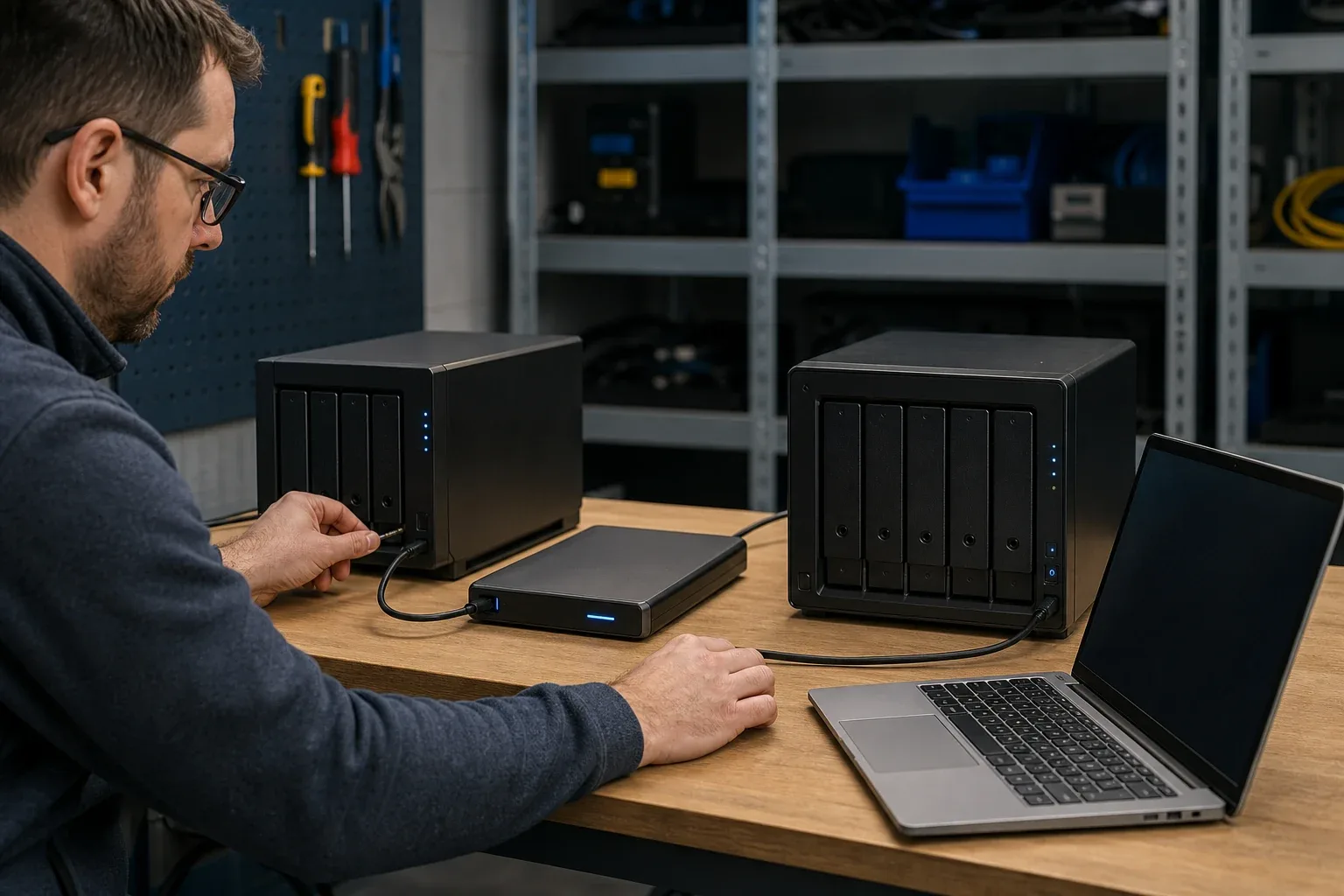
If the first Synology Drive ShareSync job will take days, copying the data near the source before moving the NAS can shorten deployment. The important step is establishing ShareSync’s own state as well as placing files at the destination. A manual copy may leave the first scan with conflicts, changed metadata, or work to repeat.
This guide explains the documented setup and the checks needed before attempting a pre-copy. If an existing task is simply slow, begin with the ShareSync speed diagnostic.
What ShareSync expects
Synology Drive ShareSync synchronizes data across multiple Synology NAS devices. Synology’s setup requires:
- Synology Drive Server on participating NAS devices;
- the relevant remote shared folders enabled as Team Folders; and
- adequate permissions for the intended one-way or two-way behavior.
Synology notes that insufficient permissions can cause one-way synchronization. Review the current Synology Drive ShareSync documentation before the initial run.
The public setup documentation describes creating the ShareSync connection and sync task. It does not establish a universal rule that manually copying visible files into a destination folder is a supported initial-copy import. That is an inference from the documented workflow, not a claim that every manual pre-copy must fail.
Current ShareSync settings expose details that matter during the first merge:
- file sync mode and direction;
- subfolder and file filters;
- conflict handling, including renaming a discarded version;
- sync logs and failed-item events;
- advanced consistency checking using criteria such as hash, execute bit, and file permissions; and
- the ability to delete the local sync database while leaving visible local data in place.
These controls prove that visible paths are only one input to the sync engine. Review Synology Drive ShareSync settings and document the selected direction, conflict rule, filters, and permissions before the first production scan.
Why a manual pre-copy is risky
Sync metadata may not match the folder tree
A synchronization service needs to know which side created a file, what version it has observed, what direction applies, and whether a deletion or rename is pending. A raw file copy does not necessarily create that state.
Timestamps and identifiers can change
The copy tool may preserve or rewrite timestamps, ownership, permissions, extended attributes, or filename normalization. The first ShareSync scan may therefore see “same-looking” files as different.
Two-way sync can turn ambiguity into conflicts
If both sides contain similar but non-identical trees, ShareSync must decide whether to upload, download, rename, conflict, or overwrite. Testing only one folder is safer than discovering the rule across millions of files.
Synology documents a conflict rule that can rename a discarded version using the file name, local NAS name, timestamp, and a conflict suffix. That is useful for preservation, but a million-file ambiguous merge can still generate operationally expensive reconciliation.
Synology Drive versions are not ordinary files
Synology says Drive file versions require supported migration or entire-device backup methods. Copying visible Team Folder files does not carry the complete version history. See Synology’s Drive version guidance.
Safer first-sync strategies
Strategy 1: Put both NAS devices on the same LAN first
When logistics allow it, perform the supported initial ShareSync on the same fast wired network:
- install and update Drive Server on both NAS devices;
- create and validate Team Folders and permissions;
- run the first synchronization locally;
- test edit, rename, delete, conflict, and reconnect behavior; and
- move the destination NAS to the remote site after the task is healthy.
Once remote, only later changes should need to cross the WAN, subject to ShareSync’s behavior.
Strategy 2: Let ShareSync build its own state over the WAN
If the NAS devices cannot be co-located, estimate the initial window and allow the supported sync job to create its state. Reduce competing backup, scrub, indexing, and media workloads during the first run.
Use the transfer-time calculator with the slower site’s upload rate and conservative utilization.
Before starting, estimate both bytes and file count. A small number of large video files may keep the WAN busy efficiently; millions of small files create enumeration, hashing, database, permission, and per-file round trips. Synology’s May 2026 troubleshooting guidance also says to check the model’s recommended file limit when sync reliability degrades.
Strategy 3: Choose a different product whose seed workflow is documented
If physical seeding is a hard requirement, choose a replication, backup, or transfer system that explicitly documents how an imported initial copy is recognized and reconciled.
For example, Synology Snapshot Replication has a specific storage-device workflow for the initial copy. Read How to Seed Synology Snapshot Replication with a USB Drive. That procedure applies to Snapshot Replication; it should not be generalized to ShareSync.
Strategy 4: Use file-level sync only when file-level behavior is enough
If the requirement is simply to keep ordinary folders aligned—and Synology Drive clients, Team Folder versions, and Drive metadata are not required—a file-level synchronization product may be simpler.
WarpSync is one option between supported endpoints. It should still be tested for conflict, deletion, permission, and first-run behavior. Do not claim that it preserves Synology Drive metadata or that it is a versioned backup. The Synology NAS replication comparison sets ShareSync beside the other cross-site options, and WarpSend for multi-site Synology NAS shows how WarpSync jobs are set up and checked.
Test before production
Create a non-production dataset containing:
- one large file;
- many small files;
- nested directories;
- duplicate names with different case where supported;
- permission differences;
- a rename on each side;
- a deletion on each side;
- simultaneous edits; and
- a network interruption.
Record exactly what happens. A sync design is not validated until its conflict and deletion behavior are understood.
Use a small matrix instead of a single happy-path test:
| Test | Expected evidence |
|---|---|
| Identical file on both sides | No duplicate or unnecessary conflict |
| Same path, different contents | Documented winner or conflict rename |
| Rename on source | Expected rename rather than duplicate-plus-delete surprise |
| Delete on each side | Known propagation behavior for the selected direction |
| Read-only remote account | Confirmed download-only behavior |
| Interrupted first sync | Task resumes and log explains pending or failed items |
| Filtered or unsupported path | Visible log entry and reconciled inventory |
Synology’s current Drive and ShareSync troubleshooting guide recommends reviewing logs for filters, unsupported paths, permissions, locked files, and transfer failures before recreating tasks.
If you already copied the files manually
Do not immediately enable a two-way production task.
- Keep a backup of both sides.
- Stop new edits temporarily.
- Compare file counts, sizes, timestamps, and representative hashes.
- Test the ShareSync task with a small isolated folder using the same pre-copy method.
- Review the resulting conflicts, uploads, downloads, and deletions.
- Ask Synology support to confirm the exact workflow if production data or version history is at risk.
Use a seeding workflow documented for the selected product and version. Where the behavior is unclear, validate it in an isolated folder and confirm support before relying on it for production data.
Synology documentation was checked on August 6, 2026. ShareSync merge behavior, recommended file limits, and Drive migration support can change by DSM, package version, and NAS model; test the exact versions in a non-production Team Folder.
Frequently asked questions
Can I manually copy files to seed Synology Drive ShareSync?
Do not assume that copying files into the destination folder creates a supported seed. ShareSync maintains service state, permissions, and synchronization metadata in addition to visible files. Use a Synology-documented workflow or test the exact process with non-production data before relying on it.
What is the safest way to make the first ShareSync faster?
When practical, place both NAS devices on the same fast wired LAN for the initial synchronization, validate the task, then move the remote NAS to its final site. Otherwise estimate the WAN window, reduce competing traffic, and allow the supported sync task to create its own state.
Is Snapshot Replication USB seeding the same as ShareSync seeding?
No. Snapshot Replication has a specific storage-device initial-copy workflow. That does not imply the same import method exists for Synology Drive ShareSync, Shared Folder Sync, or third-party sync products.
Does ShareSync advanced consistency check make a manual seed safe?
No. Synology documents advanced consistency checking as a merge comparison of criteria such as hashes, execute bits, and permissions. It can improve comparison accuracy, but it does not turn an undocumented pre-copy into a supported import of ShareSync state or Synology Drive version history.