How to Seed Synology Snapshot Replication with a USB Drive
Export a Synology Snapshot Replication initial copy to a USB drive, import it at the destination NAS, and continue incremental replication online.
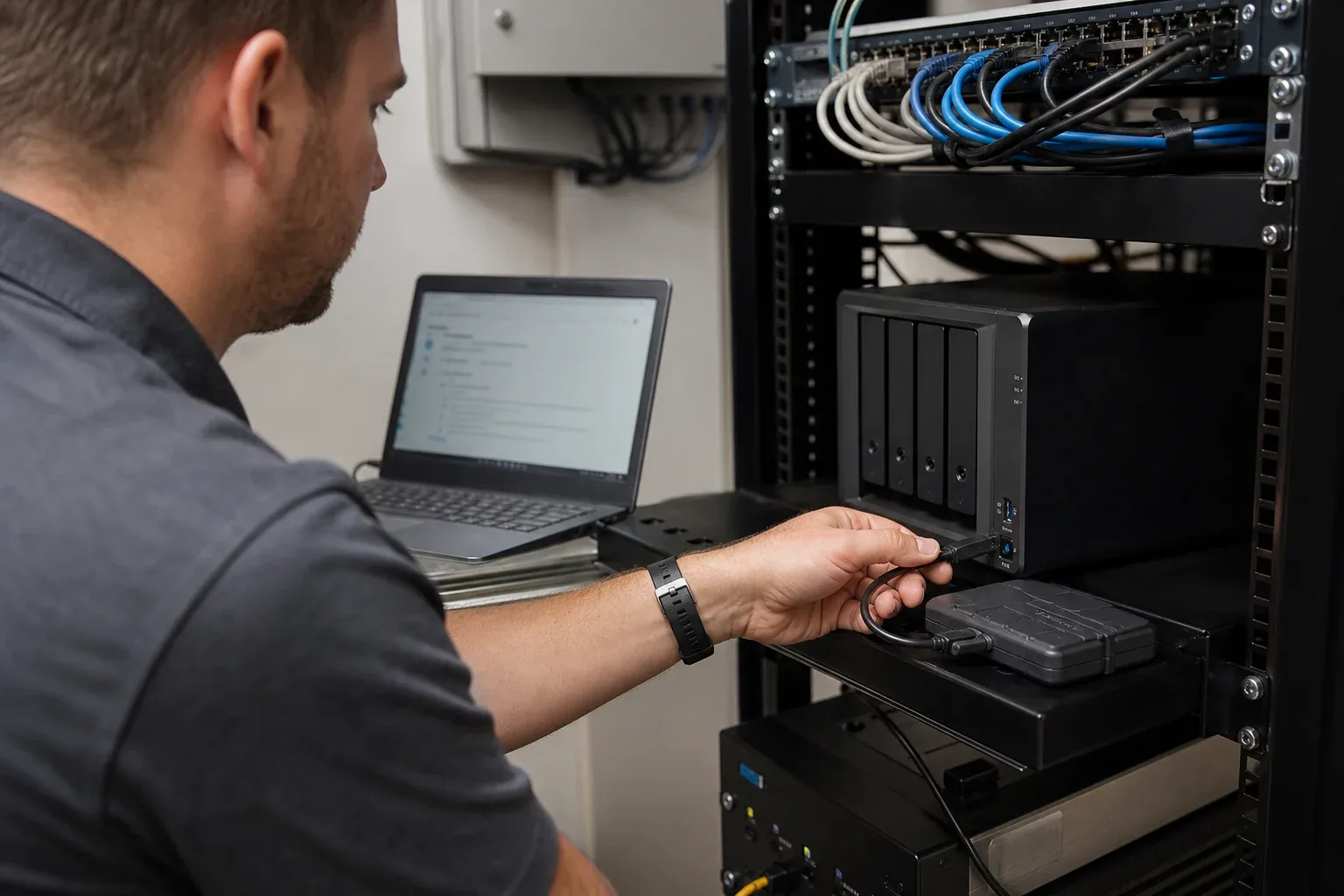
The first Snapshot Replication copy may contain terabytes even when the daily changes are small. If that baseline would occupy the WAN for days, Synology provides a storage-device export and import workflow so the bulk data can travel on a drive.
Create the replication task using Send the initial copy using the storage device, export at the source, and import at the destination. Later snapshots use the network. The steps below cover this Snapshot Replication workflow and the timing and compatibility checks to make before starting.
When a physical initial copy is worth considering
The initial copy contains the full protected dataset. Later replication cycles send changed snapshots, but the first cycle can dominate deployment time.
Use this lower-bound calculation before choosing a method:
Online time in seconds = dataset bytes × 8 ÷ sustained bits per second
For example, 8 TB over a perfectly sustained 100 Mbps connection takes:
8,000,000,000,000 × 8 ÷ 100,000,000 = 640,000 seconds
That is about 7 days, 9 hours, and 47 minutes before storage reads, encryption, contention, retries, or verification. It is a mathematical minimum, not a promised completion time.
A physical seed wins only when:
measured export time + transport time + measured import time < measured online initial-copy time
Use the file transfer time calculator with your dataset and sustained WAN rate. If you are testing across distant offices, also record the full methodology described in our long-distance file transfer guide.
Prerequisites
Before exporting anything:
- Install Snapshot Replication on both Synology systems.
- Confirm that the protected shared folder and destination use supported Btrfs storage and that both NAS models support Snapshot Replication.
- Confirm the destination has enough free space for the replica.
- Make port 5566 reachable for ongoing shared-folder replication. Synology notes that separate routers require a routable or forwarded path.
- Attach a USB drive with enough usable capacity, or prepare a local shared folder that you can move to the destination.
- Freeze avoidable bulk changes during export and import so the catch-up replication remains small.
Synology’s current remote-replication guide lists Btrfs storage, available space, and port 5566 among the preparation requirements. Check the applied-model and DSM-version notes for both devices before scheduling the migration.
Step-by-step: export and import the initial copy
1. Create the remote replication task
On the source NAS, open Snapshot Replication → Replication and create a shared-folder replication task. Authenticate to the destination server and choose the source folder and destination volume.
2. Choose the storage-device option
At the initial-copy step, select Send the initial copy using the storage device. Choose the attached USB device or a local shared folder as the export destination.
Do not choose Send the initial copy over the network if your plan is to carry the seed physically.
3. Finish the task settings
Set the replication schedule, retention policy, allowed transfer window, and other advanced settings. These settings govern the ongoing online replication after the seed is imported.
4. Let the export finish
Wait until Snapshot Replication reports that the initial copy is ready for import. Do not infer completion only from the apparent file size on the USB device.
Record:
- export start and finish time;
- source dataset size;
- source and USB filesystem;
- any DSM warning or failed item; and
- the replication task name.
5. Move the device safely
Eject the storage device through DSM, transport it to the destination site, and attach it to the destination NAS. Protect the drive in transit according to the sensitivity of the data and your organization’s media-handling policy.
6. Import on the destination NAS
On the destination, open Snapshot Replication → Replication, select the waiting shared-folder task, then choose Action → Import. Select the storage location that contains the exported initial copy and let the import complete.
7. Verify the first online replication
After import:
- Run or wait for the next scheduled replication.
- Confirm that the task reaches a healthy state.
- Review the replication log and transferred size.
- Create a small test change at the source and confirm it arrives in the next snapshot.
- Test a recovery action appropriate to your environment; a replica that has never been recovery-tested is only an assumption.
What the USB seed does—and does not do
| Question | Answer |
|---|---|
| Does it avoid sending the full initial copy over the WAN? | Yes, when the storage-device workflow completes successfully. |
| Do later snapshots still use the network? | Yes. The seed only establishes the initial replica. |
| Does it make the destination a collaborative two-way folder? | No. Snapshot Replication is a protection and recovery workflow. |
| Does it remove Btrfs and model requirements? | No. Compatibility requirements still apply. |
| Does it remove port 5566 requirements? | No. Ongoing remote replication still needs a reachable path. |
Initial copy over the network vs storage device
| Choose | Better when | Main trade-off |
|---|---|---|
| Over the network | The dataset is small, the WAN is fast, or physical media handling is impractical | Consumes WAN time and capacity during the full initial copy |
| Using a storage device | The dataset is large and export + transport + import is measurably faster | Adds physical handling, two local I/O passes, and operational coordination |
Do not assume USB is faster. Benchmark the source-to-device export and destination import with representative data. Large numbers of small files can make local storage work significant even when the byte count looks manageable; see why thousands of small files transfer slowly.
Is Snapshot Replication the right Synology tool?
Snapshot Replication is designed for point-in-time protection, remote replicas, and recovery operations. If your real requirement is a readable one-way mirror, versioned backup, or a folder that teams edit at both sites, start with our Synology NAS replication method comparison.
WarpSync is a separate file-level workflow for automated one-way or two-way movement between supported endpoints. It is not a substitute for Btrfs snapshots or Synology failover. Review the WarpSync capabilities if continuous file movement—not snapshot recovery—is the primary requirement. For managing those jobs across several offices, see Synology NAS file transfer software.
Primary sources
- Synology: Replicate snapshots to a remote destination — storage-device workflow, requirements, and import steps; last updated March 11, 2026.
- Synology: Snapshot Replication operations — current export and import controls and storage requirements.
- Synology: Snapshot Replication Quick Start Guide — initial-copy export/import behavior and replication concepts.
Sources and product documentation were checked on July 25, 2026. DSM labels and supported models can change; verify the current documentation for both NAS devices before starting.
Start with WarpSend if you need to test an automated cross-site file workflow with a representative folder.
Frequently asked questions
Can I seed Synology Snapshot Replication with a USB drive?
Yes. When creating the replication task, choose Send the initial copy using the storage device, export the initial copy at the source, move the device to the destination NAS, and import it there.
Does the USB seed remove the need for a network connection?
No. The storage device carries only the initial copy. Ongoing snapshots still replicate over the network, so the source and destination must remain connected and the required replication port must be reachable.
Which port does Synology Snapshot Replication use for shared folders?
Synology documents port 5566 for shared-folder replication on Btrfs volumes. If the NAS devices sit behind different routers, the route must make that port reachable according to your security policy.
Is a physical seed always faster than an online initial copy?
No. Compare measured export time, shipping time, and import time with the online transfer estimate. A fast WAN or a small dataset may finish sooner over the network.